Teach Me
Navigating the Teach Me Interface
Written By:
Overview
The Teach Me interface is designed to guide you through workflows step by step, making it easy to follow processes without confusion. Here’s an overview of the key elements:
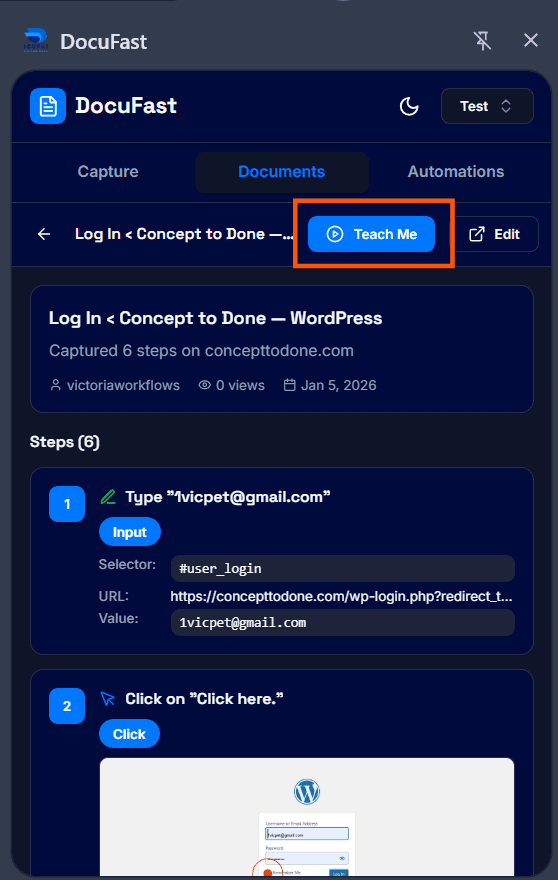
Teach Me Button
Click the Teach Me button to start the interactive guide for a selected document or workflow. This activates the step-by-step overlay.
Highlighted Elements
Each step highlights exactly what you need to click or interact with. The highlight ensures you focus on the right field, button, or area.

Step Instructions
Instructions appear very close to the highlighted element, telling you exactly what action to perform. This keeps guidance intuitive and easy to follow.

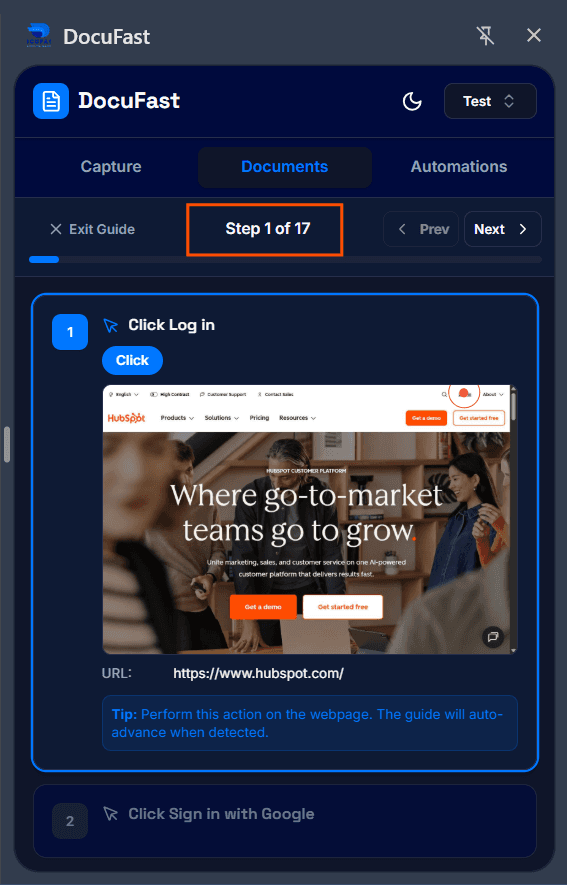
Step Count
The interface shows your progress with a step count, e.g., “Step 2/6,” so you always know how far along you are in the guide.
Navigation Buttons
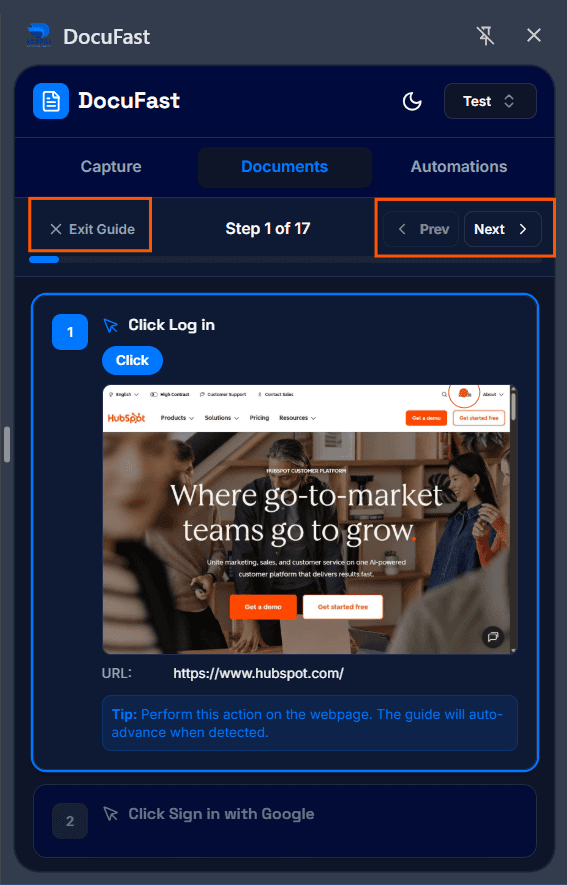
Prev: Go back to the previous step if you need to review or redo something.
Next: Move forward to the next step after completing the current action.
Finish: Click when you have completed all steps to mark the guide as done.
Exit Guide: Close the guide at any time if you need to pause or leave the session.
Screenshots
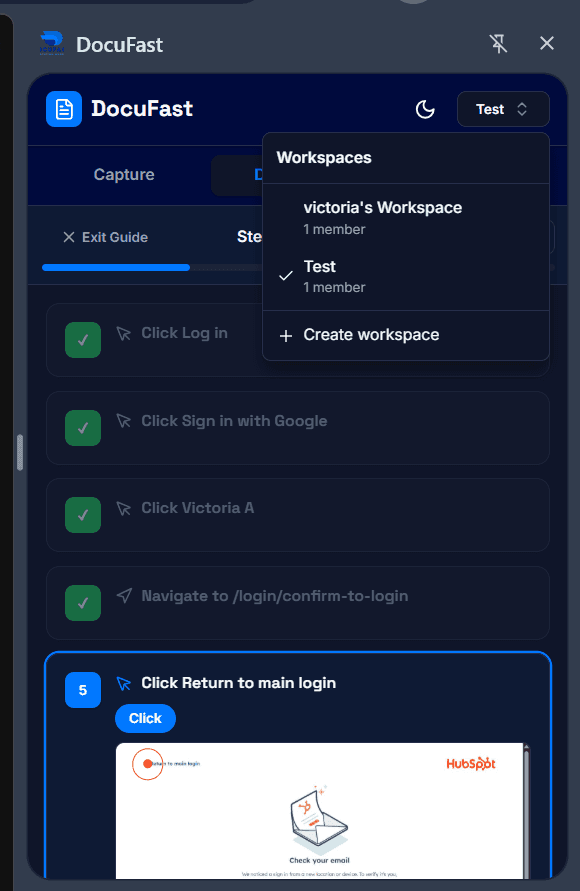
You will see a screenshot of the step you are currently on. You can click on it to enlarge it, and close it using the close button.

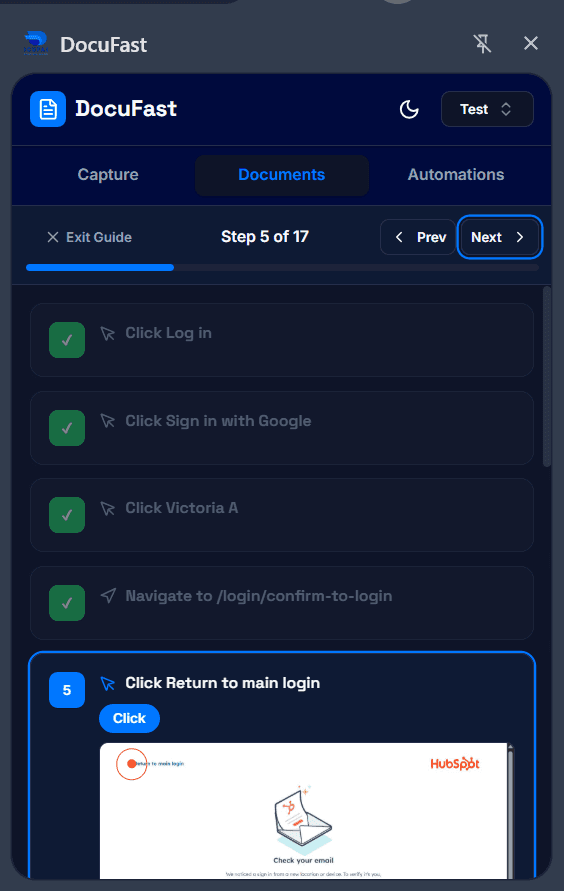
Progress Indicators
Steps that are already completed show a green checkmark, making it easy to see which actions have been finished.
Workspaces Menu
It is located at the top right of the Teach Me interface and allows you to view and switch between all workspaces you are a member of.
Related to Teach Me
