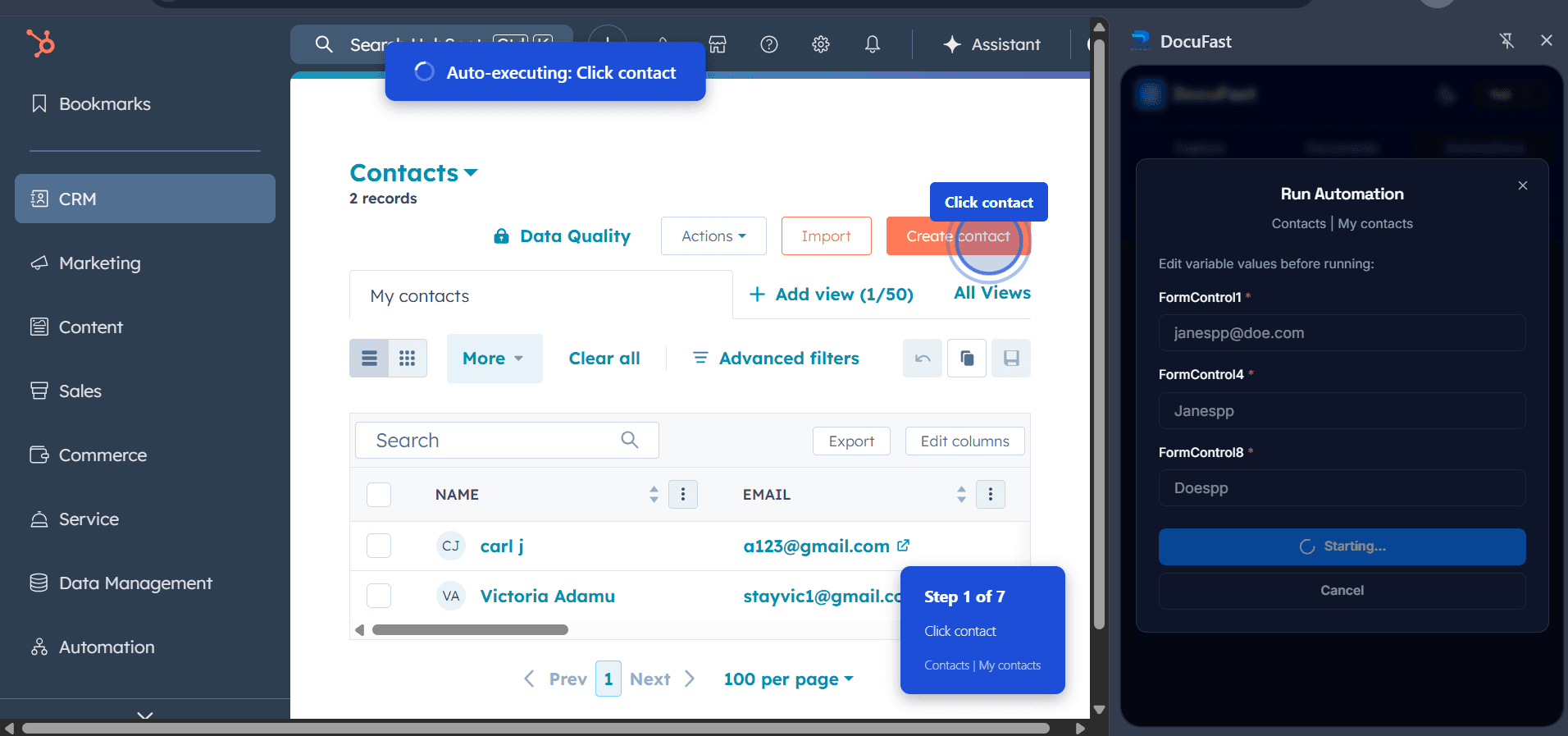
Automation
How to Add Variable Inputs
Written By:
Overview
Variables allow your automation to adapt to different data values, making workflows reusable across scenarios.
Steps to Run an Automation with Variables
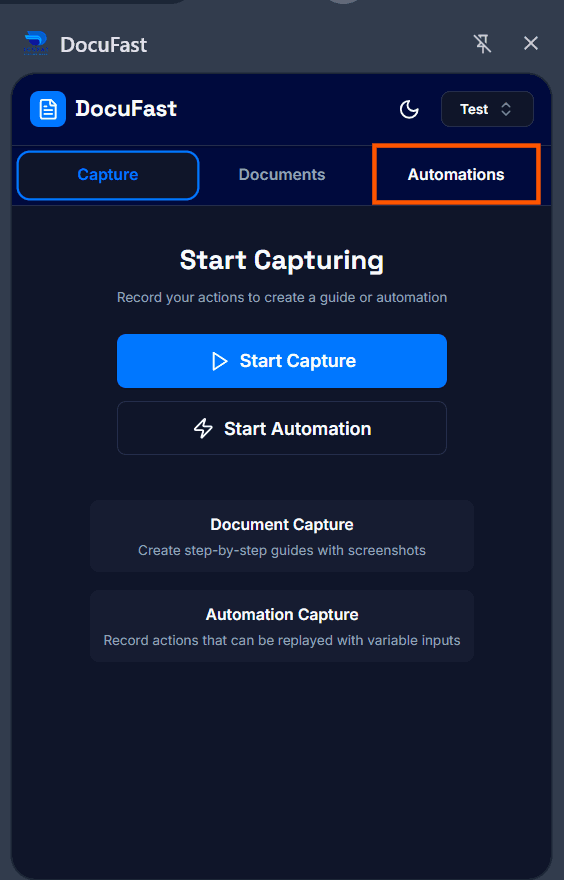
Step 1: Go to Automations
Access your automations from the side panel to see all available workflows.
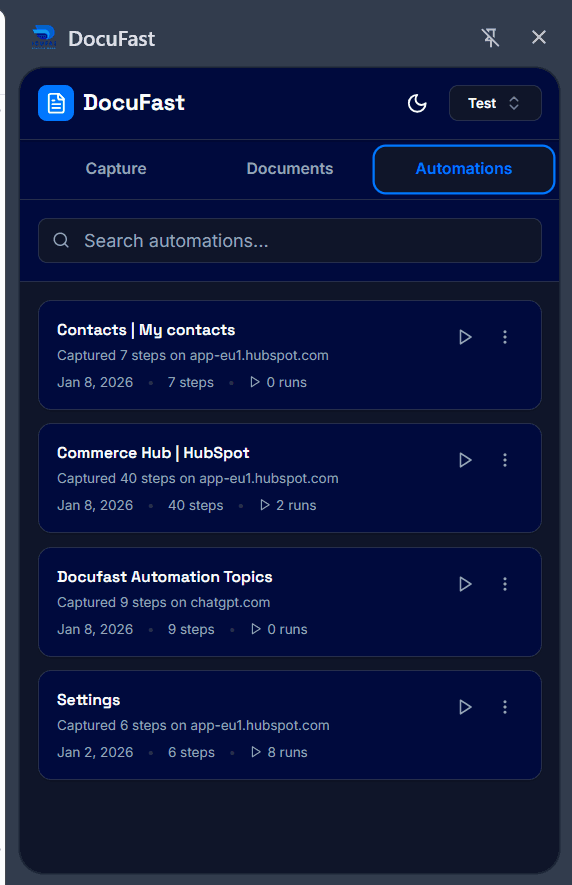
Step 2: Click Run Automation
Select the workflow you want and click the Run Automation icon to start.
Step 3: Edit Variable Values
If the workflow uses variables, you’ll be prompted to update their values before running.
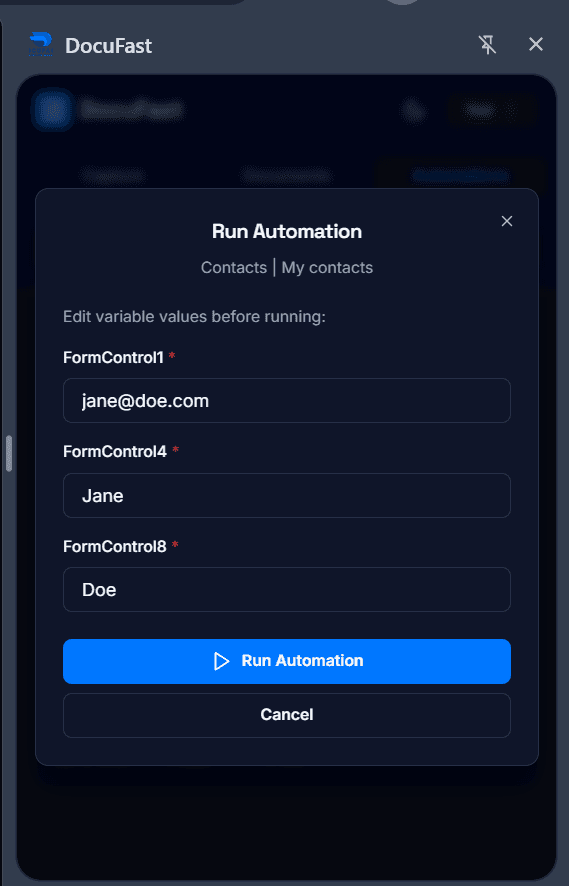
Step 4: Start the Workflow
After editing the variables, click Run Automation to execute the workflow.