Automation
Navigating the Automatization Interface
Written By:
Overview
The Automatization interface is where you view, manage, and run your saved automated workflows. You can access it quickly from the left panel and take action on any automatization with just a few clicks.
Accessing Automatizations
To get started:
Look at the left-hand panel of your DocuFast dashboard
Click Automatization
This opens the All Automatizations page, where all automated workflows in your workspace are listed.
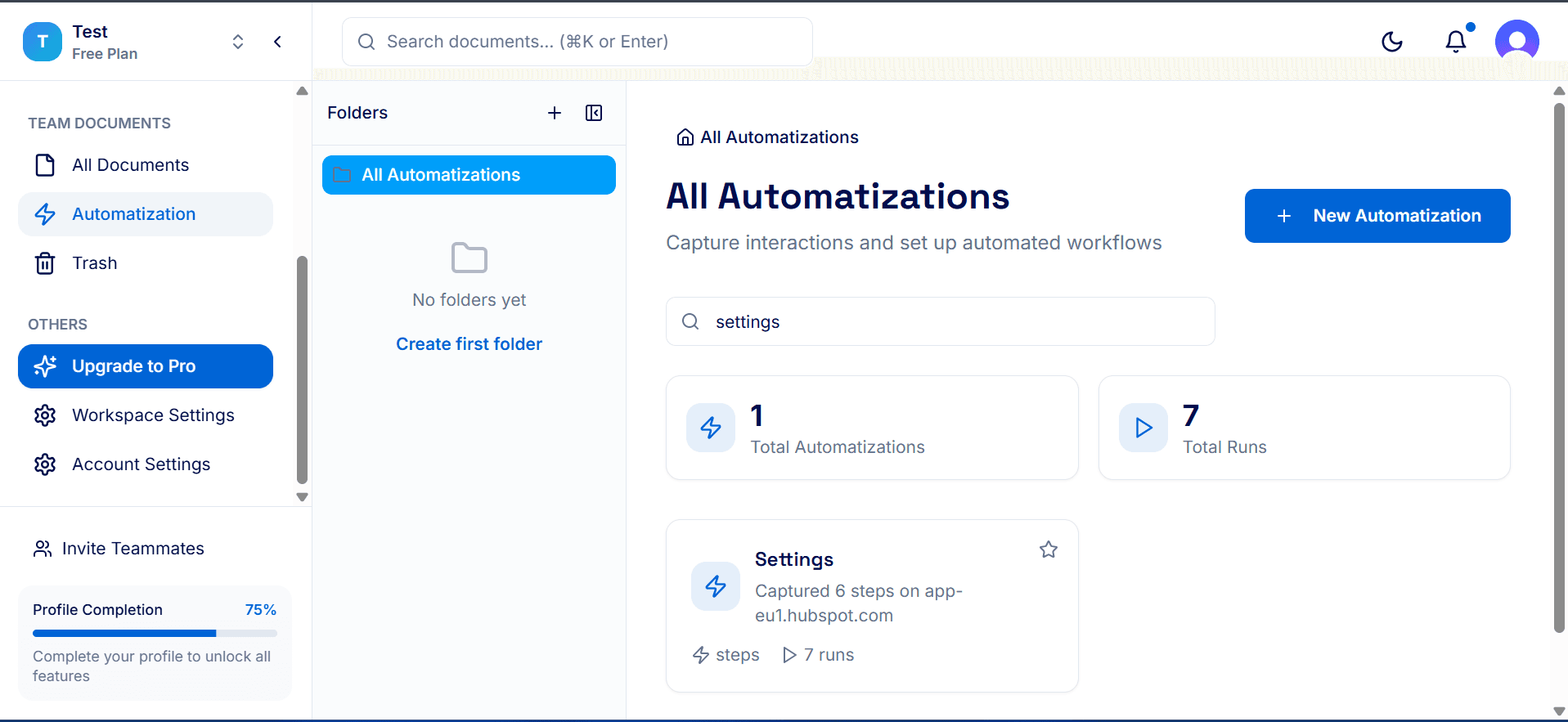
This page gives you a clear overview of your automatizations and quick access to key actions.
What You Can Do Here
View all automatizations in your workspace
Search for a specific automation by name
Create a new automation using the New Automatization button
See summary stats, such as:
Total Automatizations
Total Runs
Each automatization is displayed as a card showing:
The title
The description
Number of times it has been run
Clicking on any automatization card opens its detailed view.
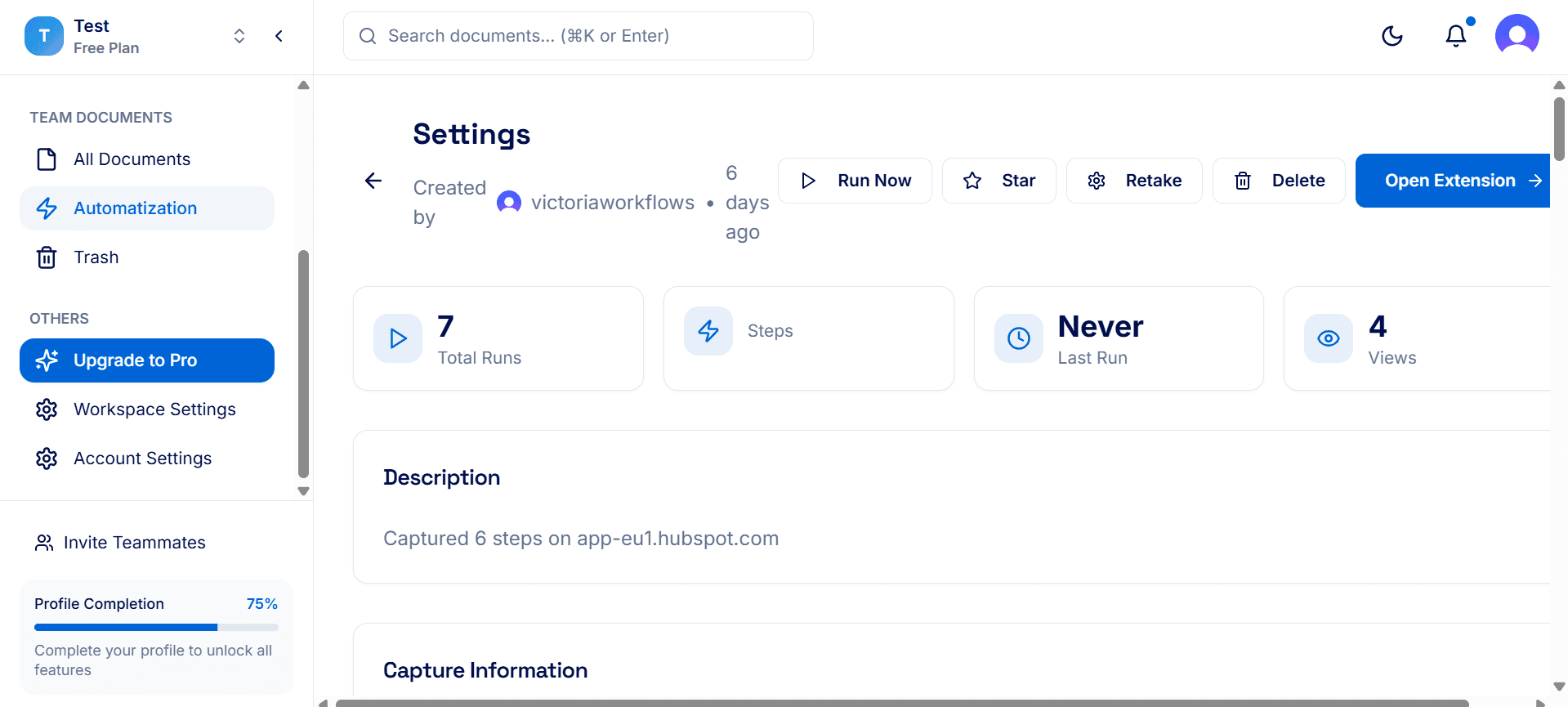
▶ Run Now
Automatically executes all recorded steps in the correct order
⭐ Star
Marks the automatization as a favorite
🔄 Retake
Allows you to re-record the automatization
🗑 Delete
Temporarily moves the automatization to trash. You can restore it within 30 days.
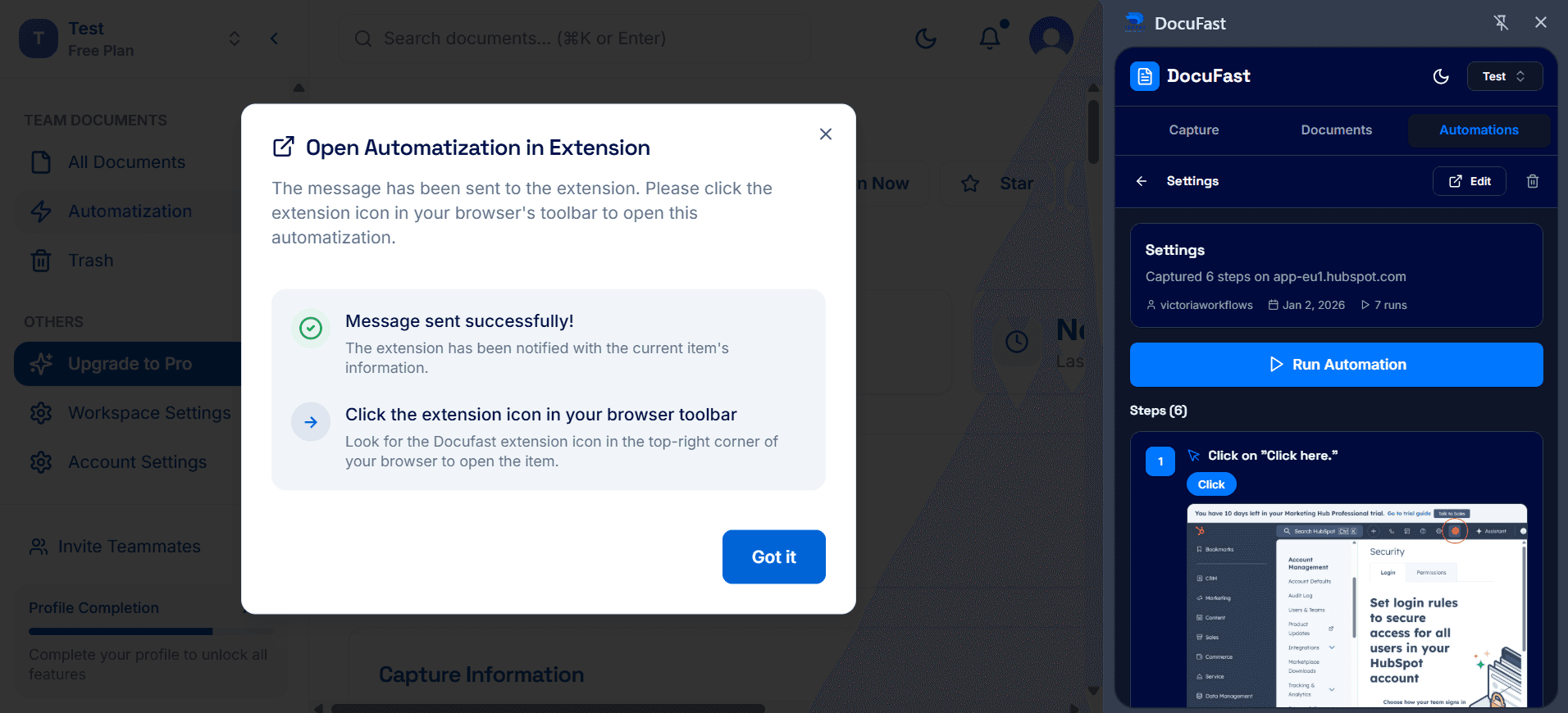
🧩 Open Extension
Sends a message to the extension to open the automation workflow. Simply click on the extension icon in the top-right corner of your browser to open the workflow.