Capture
How to Record a Workflow
Written By:
Overview
DocuFast allows you to record your on-screen workflows with a single click. Every click, field, and action is automatically captured — including screenshots and step instructions — so you can create professional guides in seconds.
Prerequisites
DocuFast Chrome Extension is installed and active.
You are logged into your DocuFast account.
The target tab is open and active.
Steps
Step 1: Open the Extension
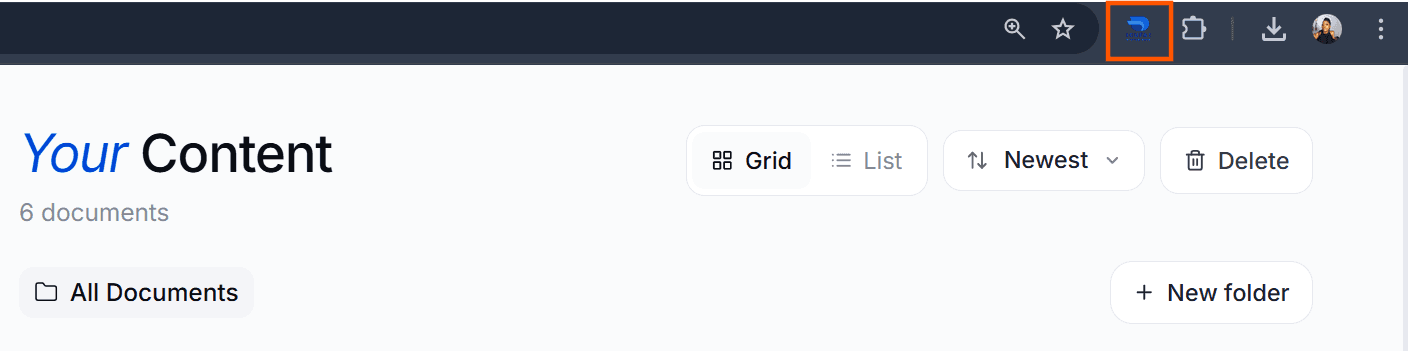
Click the DocuFast icon in your browser toolbar to open the side panel.
Step 2: Start Recording
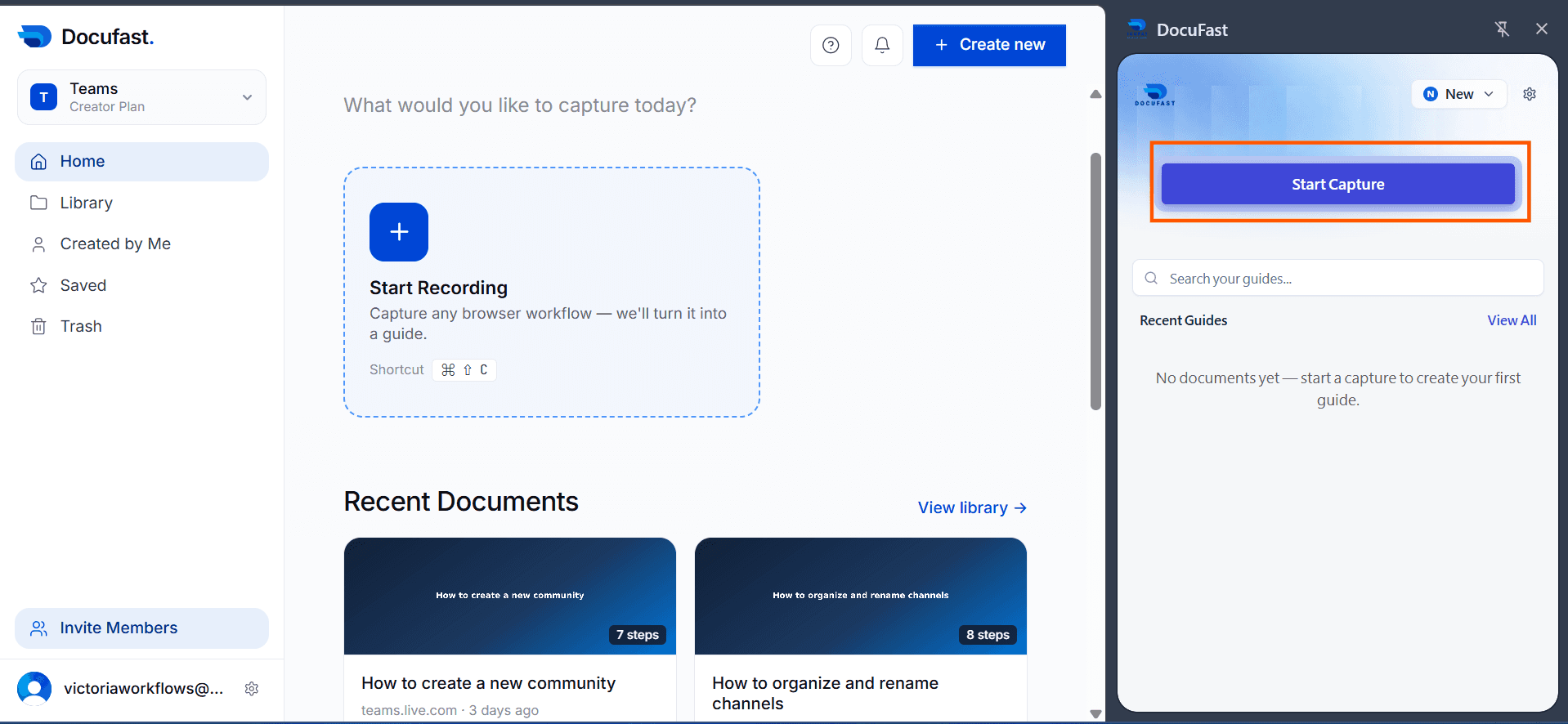
Click the 'Start Capture' button in the DocuFast side panel to begin capturing actions and screens.
Step 3: Perform Your Workflow
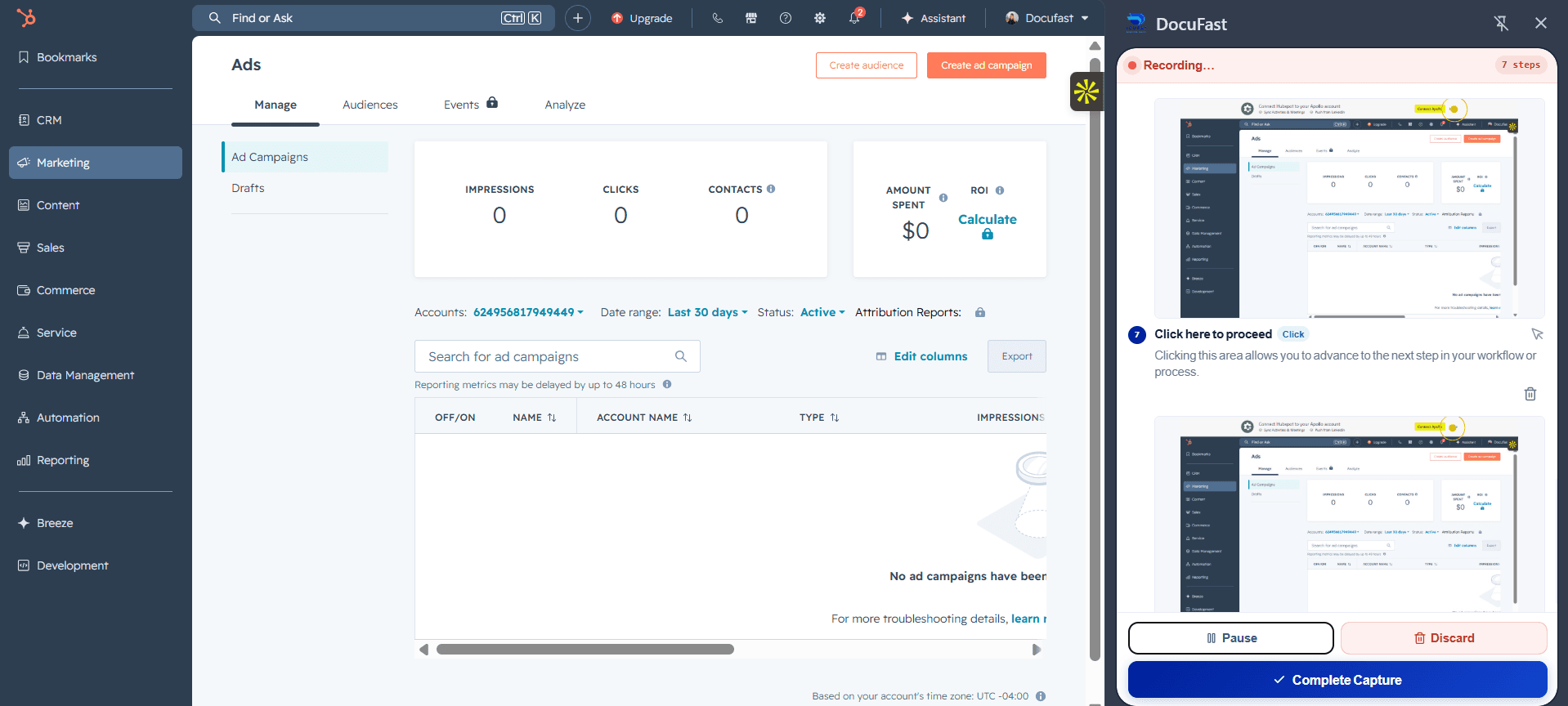
Carry out your normal workflow. DocuFast captures each relevant action in real-time.
Step 4: Stop Recording
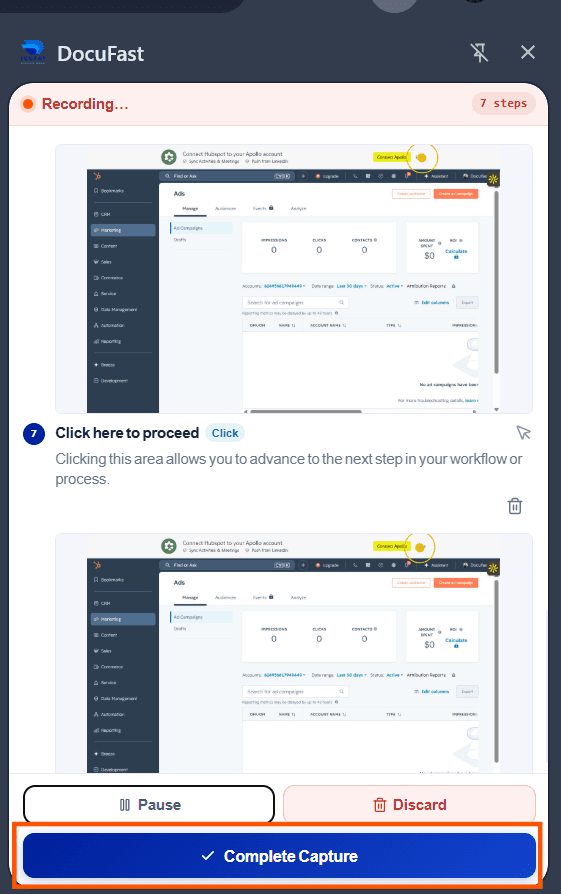
Click 'Complete Capture' when finished. A draft document is automatically generated.
Step 5: Review Your Document
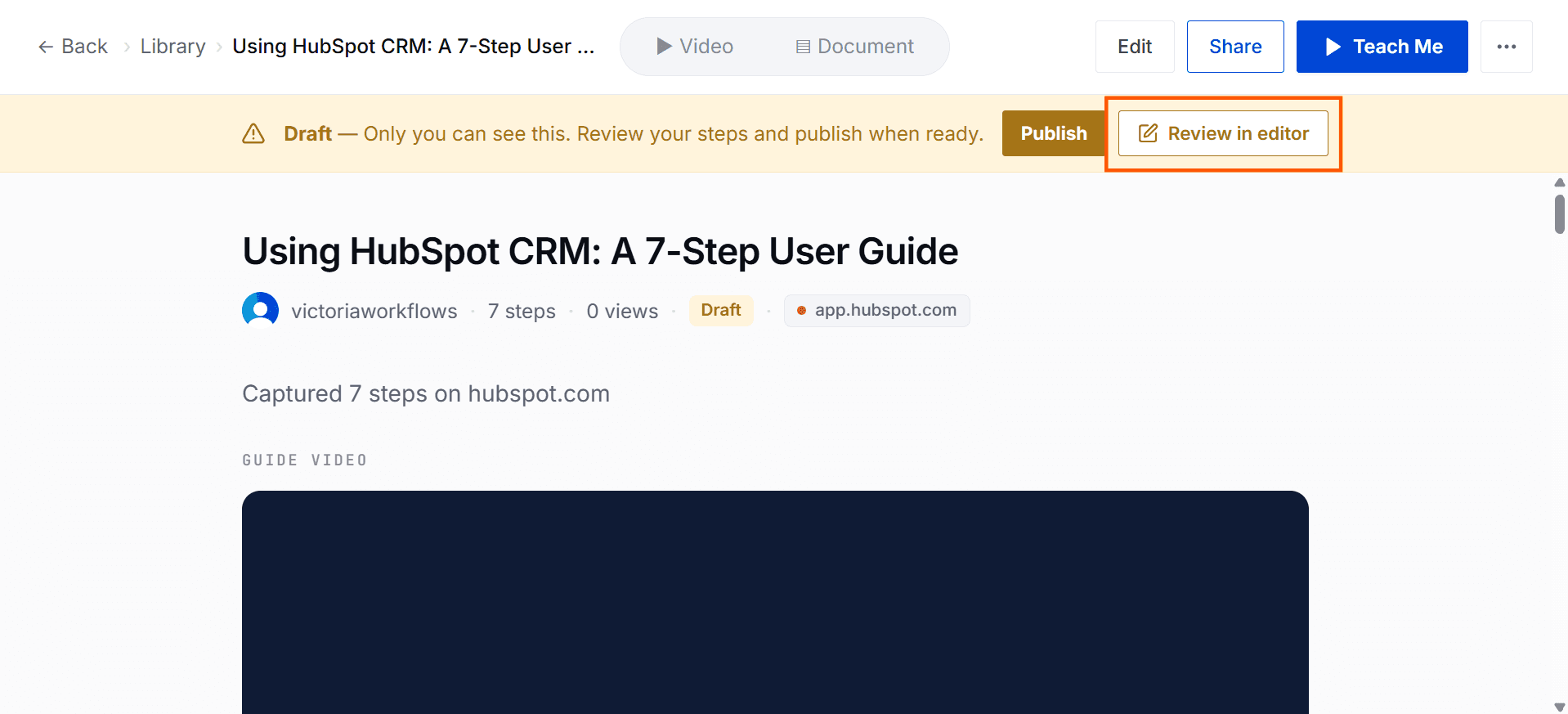
Edit or review your generated guide by clicking on Review in editor. You can modify a step's action, instruction, or screenshot.
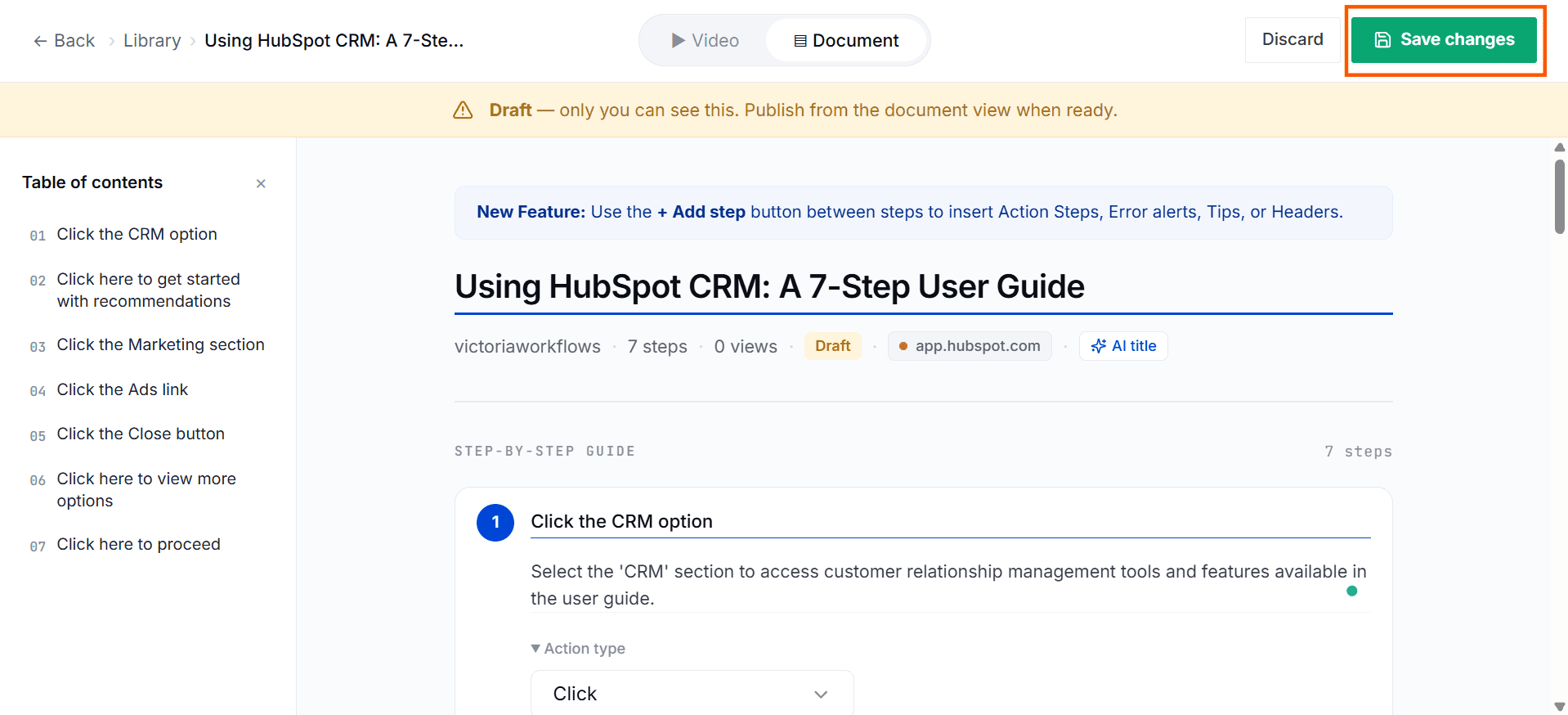
Step 6: Save Changes
Save the edited guide and hit publish.
Tips for Best Results
Keep your browser window visible at all times — hidden tabs will not be captured.
Avoid switching between tabs during recording.
Name your workflow clearly for easy identification later.
Common Issues
Issue | Solution |
|---|---|
Recording doesn’t start | Refresh the tab and reopen the DocuFast extension. |
Screenshots are missing | Ensure Chrome permissions for screenshots are enabled. |
Side panel doesn’t appear | Pin the extension in the Chrome toolbar. |
