Capture
How to Export a Document as PDF
Written By:
Overview
DocuFast makes it easy to export your documents as PDFs, giving you a portable and shareable version of your workflow guides. This is useful when you need to send documentation to stakeholders, share guides outside DocuFast, or keep records for training and compliance purposes.
Exported PDFs preserve your steps, instructions, and screenshots in a clean, readable format.
Steps
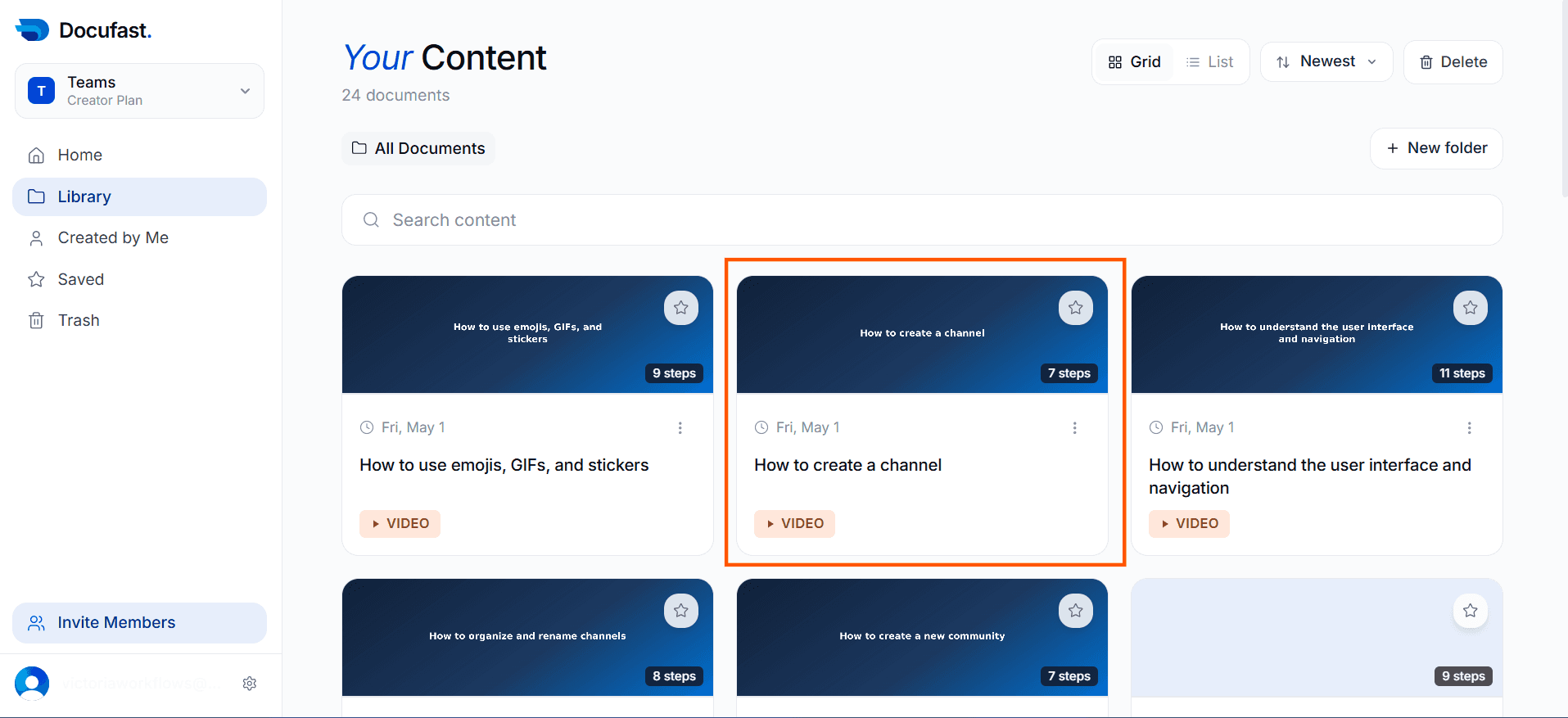
Step 1: Open the Document
Go to Library on the left-hand side of your dashboard and select the document you want to export.
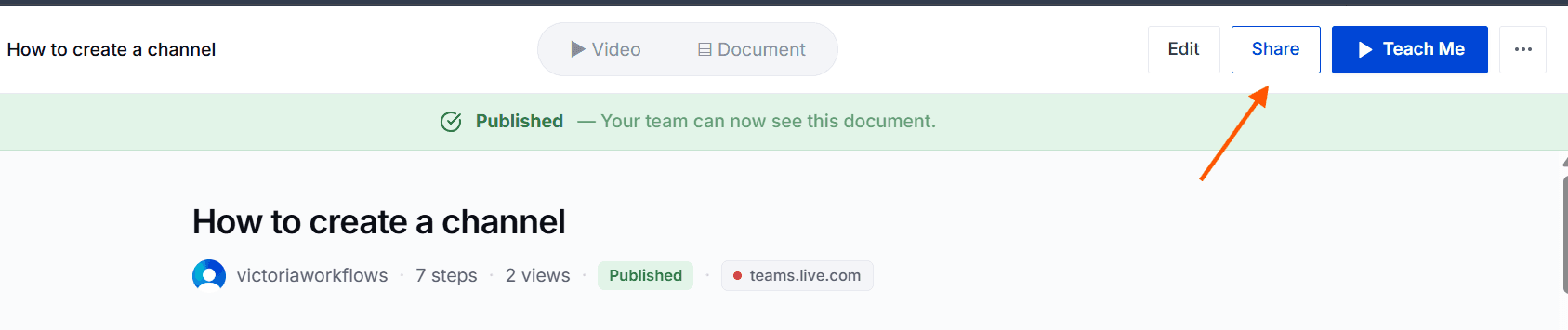
Step 2: Click Share
Select Share at the top right of the document to view available options.
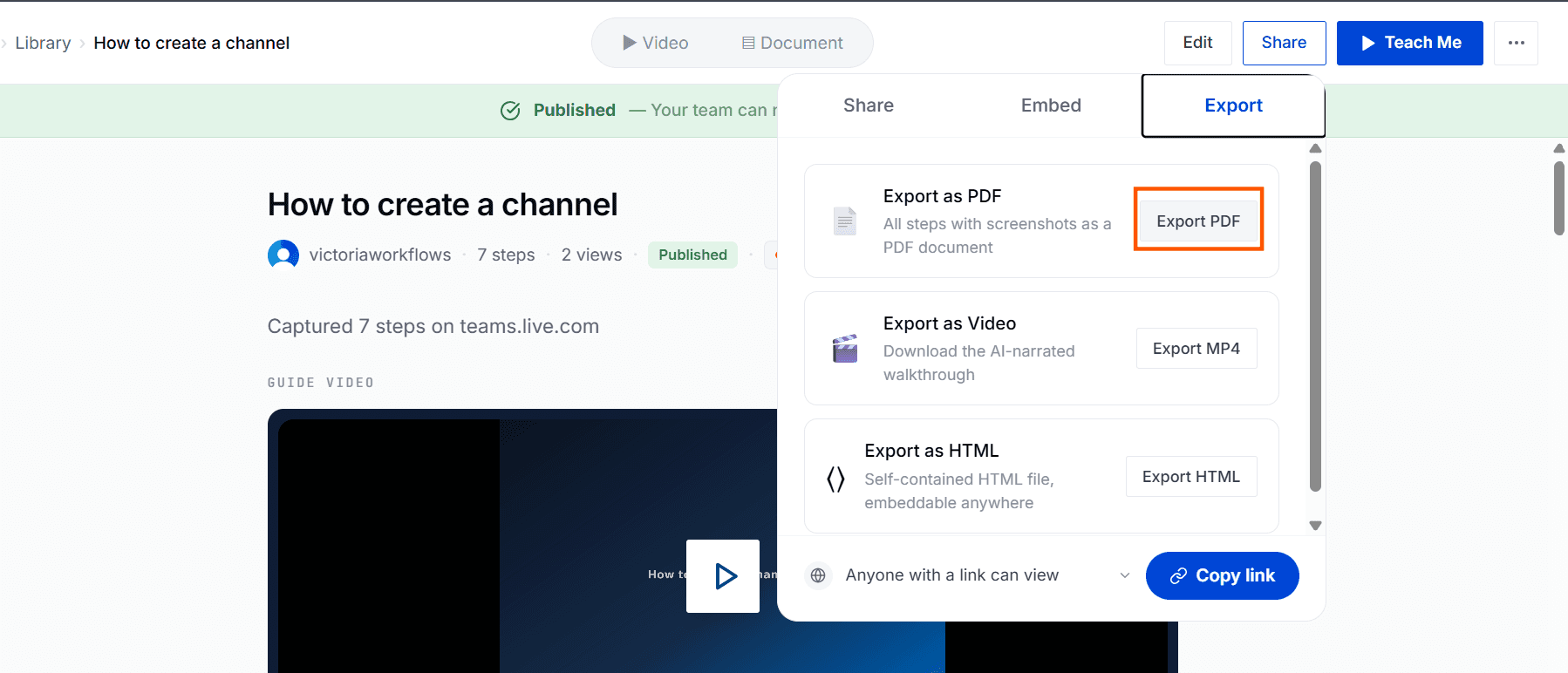
Step 3: Select Export PDF
Go to the Export tab and click Export PDF.
Step 4: Choose Export Settings
Configure your PDF settings:
Page size: Select A4 or Letter
Orientation: Choose Portrait or Landscape
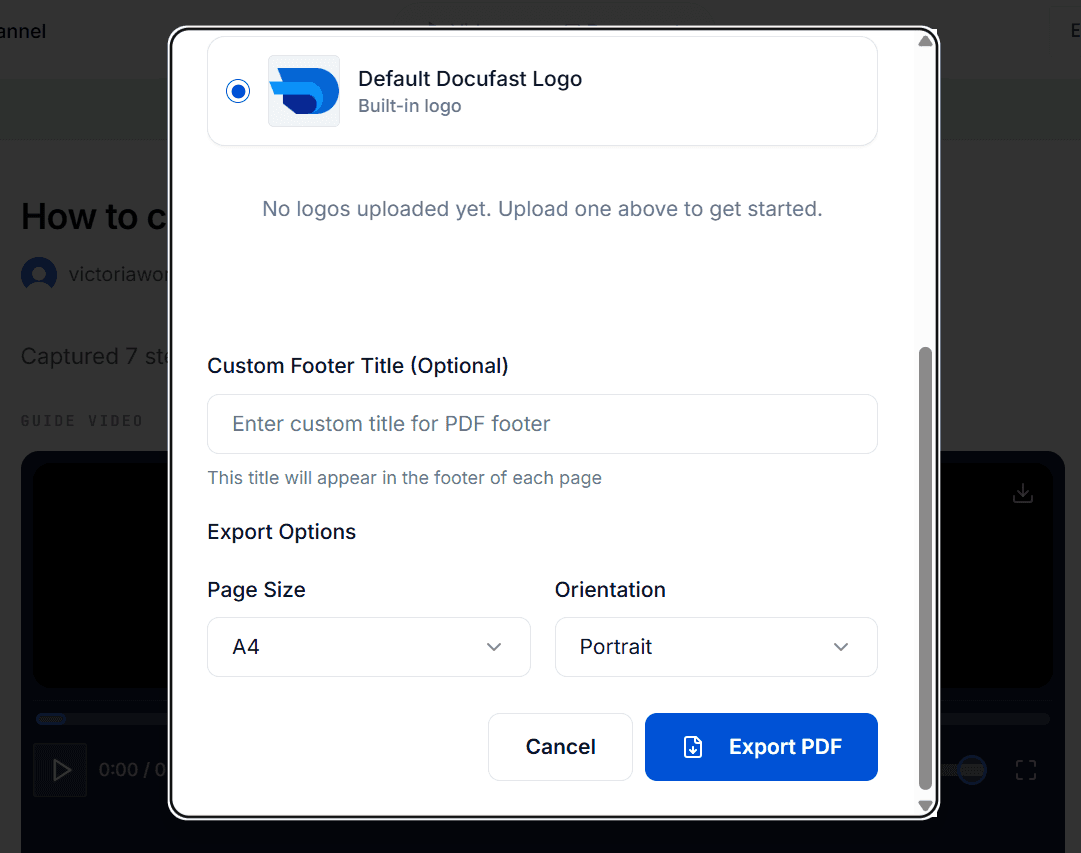
Step 4: Export the Document
Click Export PDF to generate and download the file.
Tips for Best Results
Use PDF for official documentation.
Review your document before exporting to ensure instructions and images are accurate.
Rename your document clearly so the exported PDF is easy to identify.
