Capture
How to Add or Delete Screenshots
Written By:
Overview
DocuFast automatically captures screenshots during workflow recording, but you may want to fine‑tune which images appear in your document. You can add custom screenshots or remove unnecessary ones to make your guide more useful and visually clear.
Prerequisites
You have a recorded workflow open in DocuFast
You are in Edit mode for the document
The screenshot you want to add is saved on your device
How to Add or Replace a Screenshot
Add a Screenshot
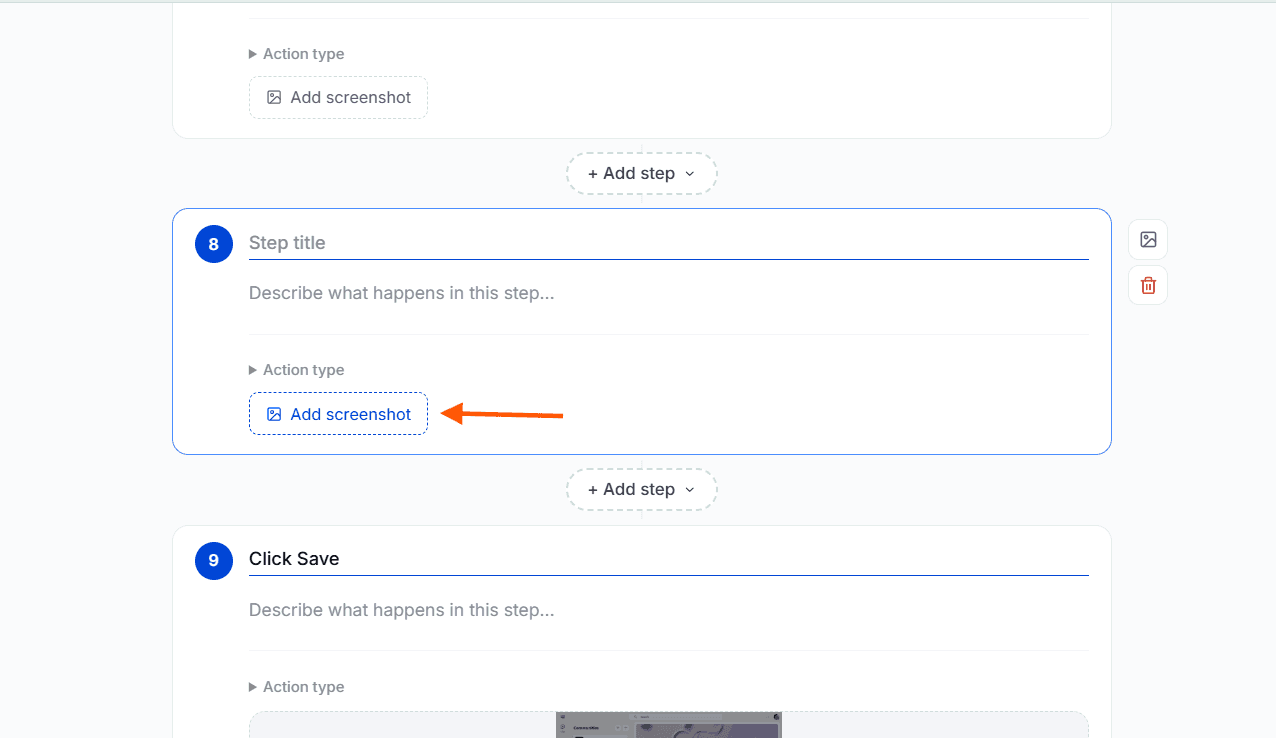
Add a new step and select Action step.
Select Add screenshot.
Select the screenshot file from your device to add it to the step.
Replace a Screenshot
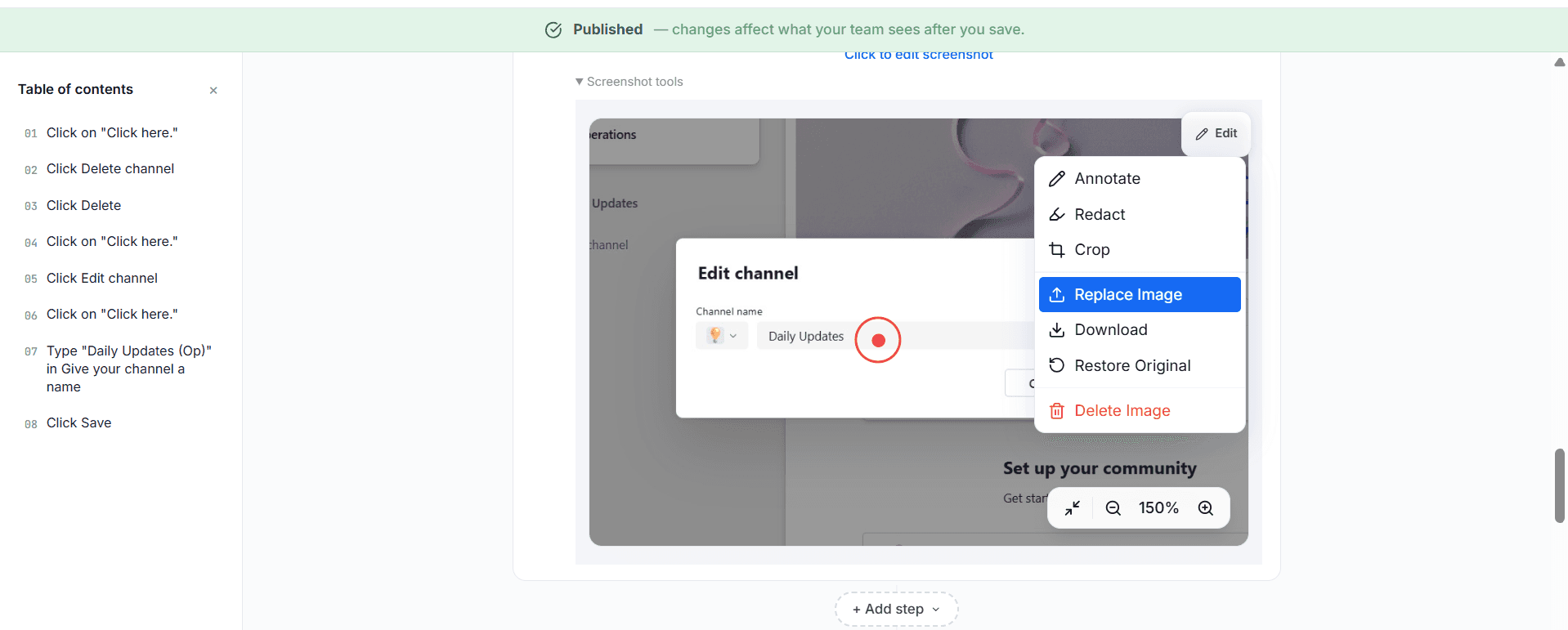
Click on Screenshot tools on the existing screenshot.
Select Edit and Replace Image.
Choose a new screenshot file from your device. The old image will be replaced.
How to Delete a Screenshot
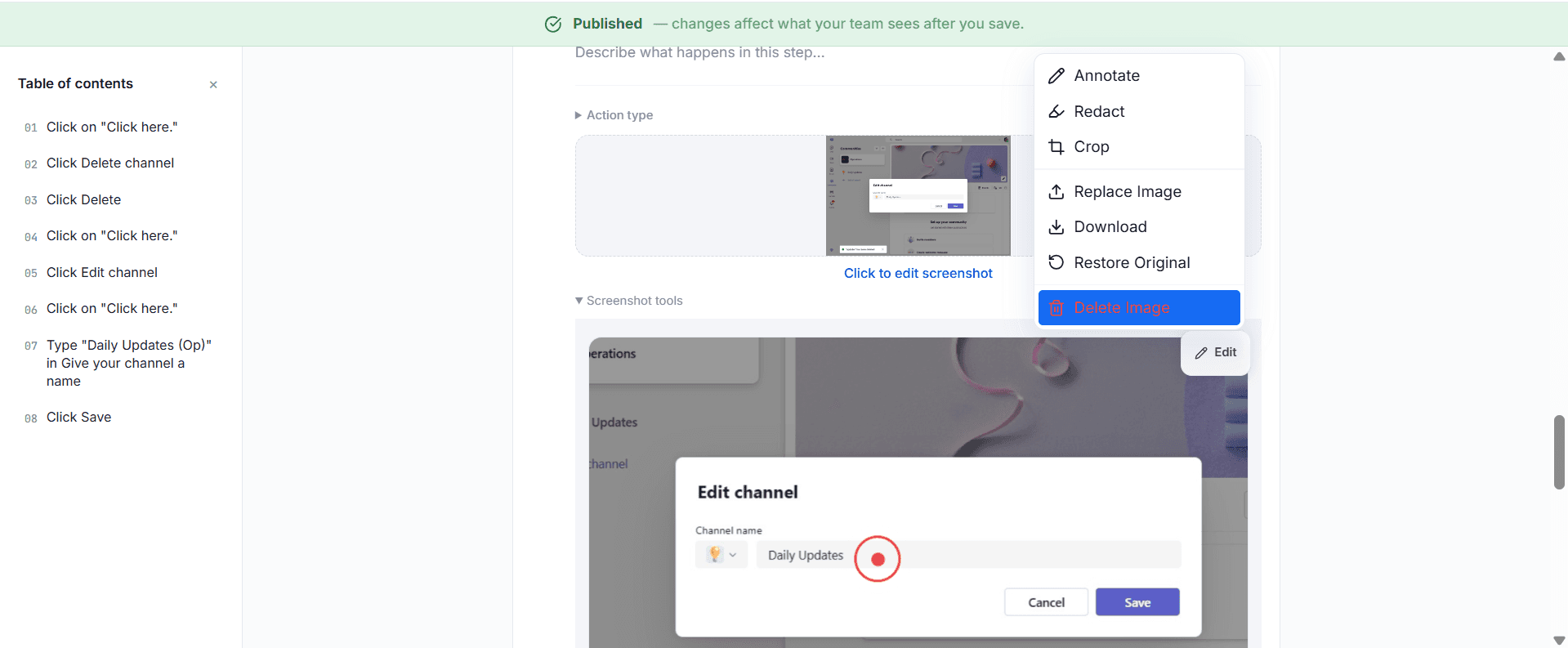
Click on the Screenshot tools.
Select Edit and Delete Image to remove the unwanted screenshot from that step. The step will remain, but the visual will be removed.
Save Your Changes
After adding or deleting screenshots, click Save changes to apply your modifications and update the document.
Tips for Best Results
Ensure screenshots match the step description.
Use the same screen resolution for consistent visuals.
