Automation
Managing Automations from the Side Panel
Written By:
Overview
The side panel is your control center for automations. It helps you stay organized, quickly access workflows, and perform actions without navigating away from your main workspace. Using the side panel effectively saves time and keeps your automations streamlined.
Steps
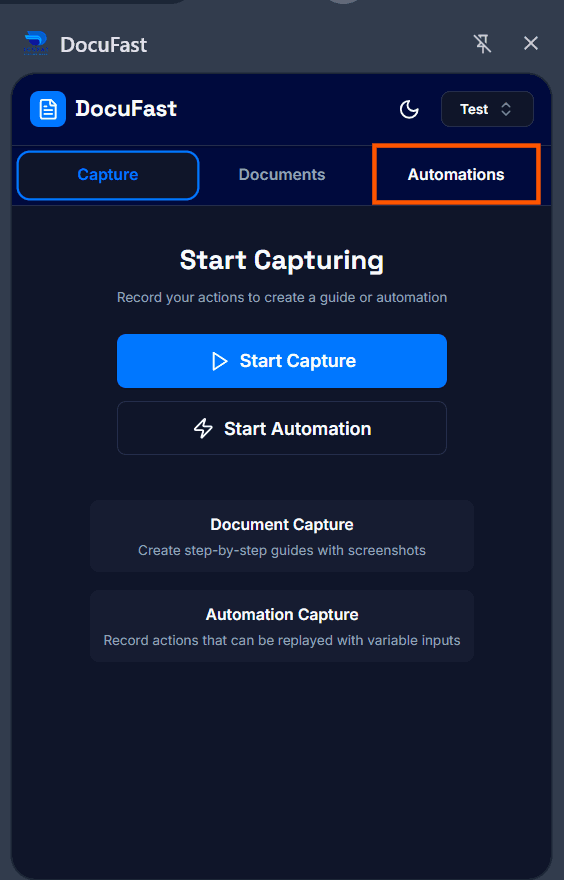
Step 1: Open the Automations Tab
Click on the Automations button in the DocuFast extension to see a list of all your workflows.
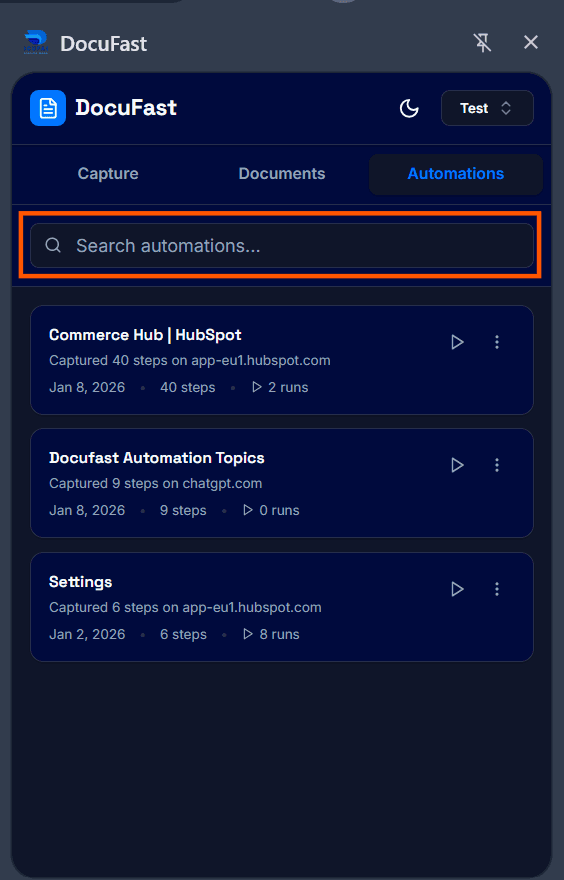
Step 2: Search for Automations
Use the search bar to quickly find a specific automation by title.
Step 3: Run an Automation
Click the Run Automation icon next to a workflow to start it immediately.
Step 4: More Options
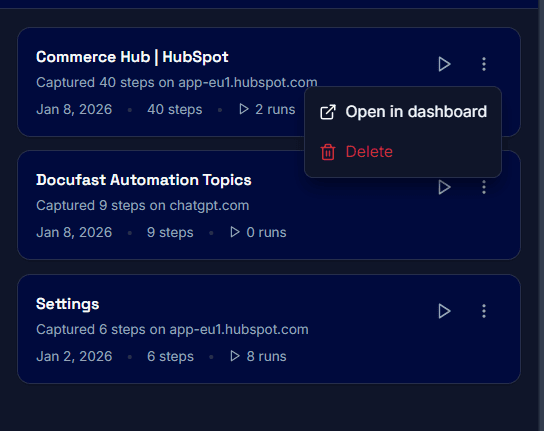
Click the Kebab menu (three dots) on any automation workflow to access additional actions:
Open in Dashboard – Opens the workflow in the main DocuFast dashboard.
Delete – Removes the automation from your list if it’s no longer needed.
Tips for Managing Automations
Regularly review and delete outdated automations to keep your side panel clean.
Use the search function to save time when working with many workflows.
Always confirm before deleting an automation to avoid losing important workflows.
