Automation
How to Use Folders to Organize Automatizations
Written By:
Overview
By creating folders, you can group related workflows together, making it faster to find, manage, and update them. Folders also make collaboration easier, ensuring everyone on your team can find the right automation without confusion.
Steps
Step 1: Open Automatization
On the left panel, click Automatization.
Step 2: Create a Folder
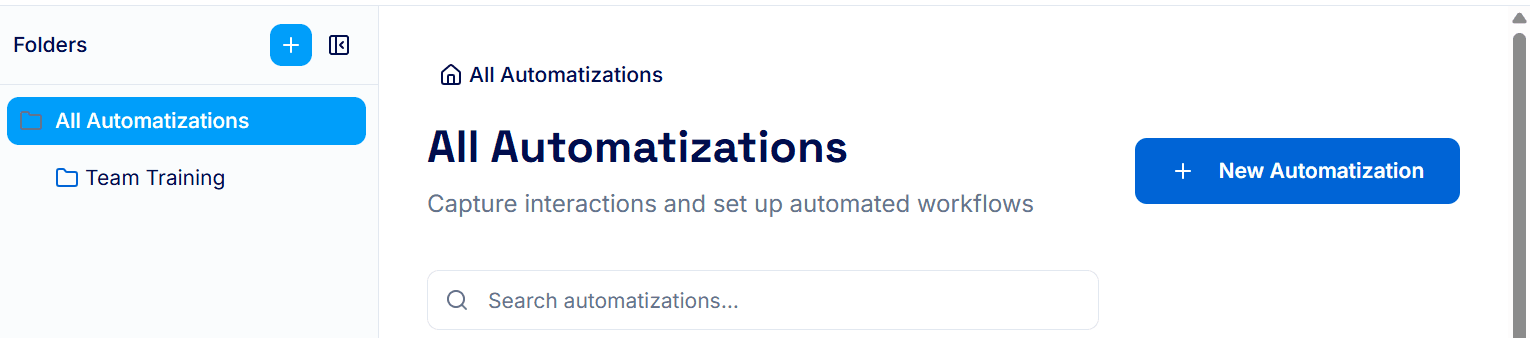
Click the “+” button next to Folders.
Enter a name for your folder.
Click Create Folder. Your new folder will appear in the Folders list.
Step 3: Move an Automation into a Folder
Find the automation you want to organize.
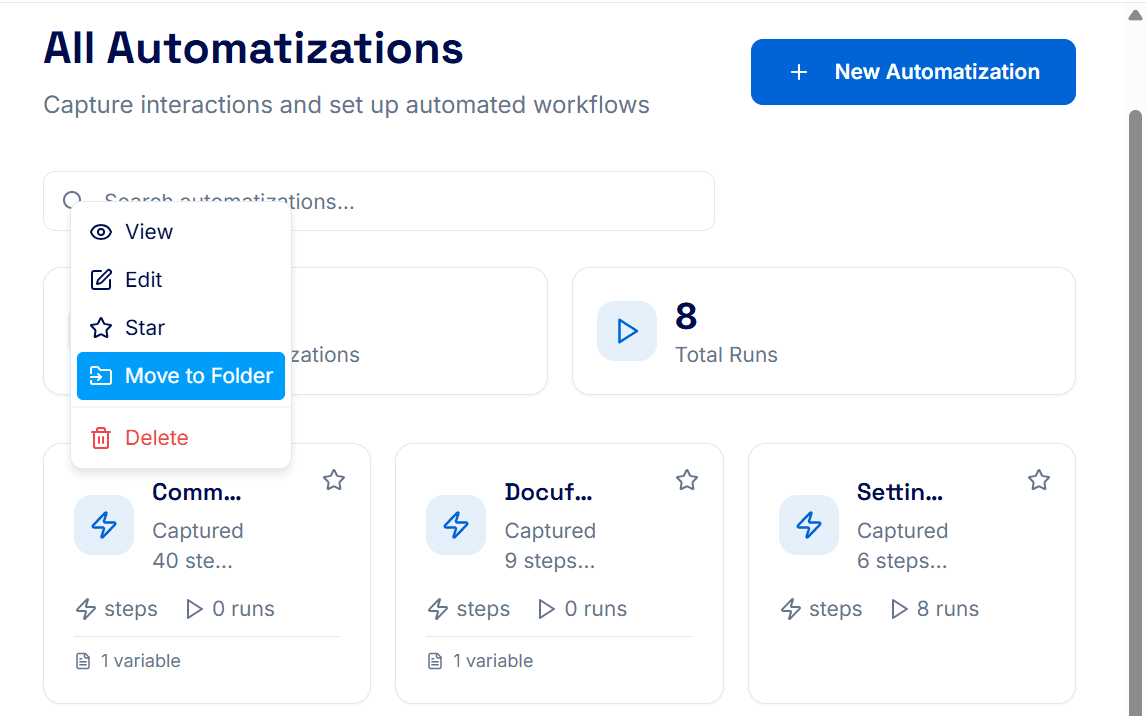
Click the three dots on the automation card.
Select Move to Folder.
Choose the correct folder from the list.
Step 4: Access Automations by Folder
Click on any folder to view only the automations inside it. This makes navigating large numbers of workflows faster and simpler.
