Collaborating
Collaborating Across Teams or Departments
Written By:
Overview
Cross-team collaboration often involves different roles, priorities, and workflows. Marketing may draft content, Legal may review it, Operations may finalize it, and Leadership may approve it—all within the same document lifecycle.
DocuFast is designed to support this type of collaboration by making documents easy to share, review, and update across departments, while preserving structure, feedback, and access control. Instead of emailing files back and forth or managing multiple versions, teams collaborate directly within the same document environment.
How Cross-Team Collaboration Works in DocuFast
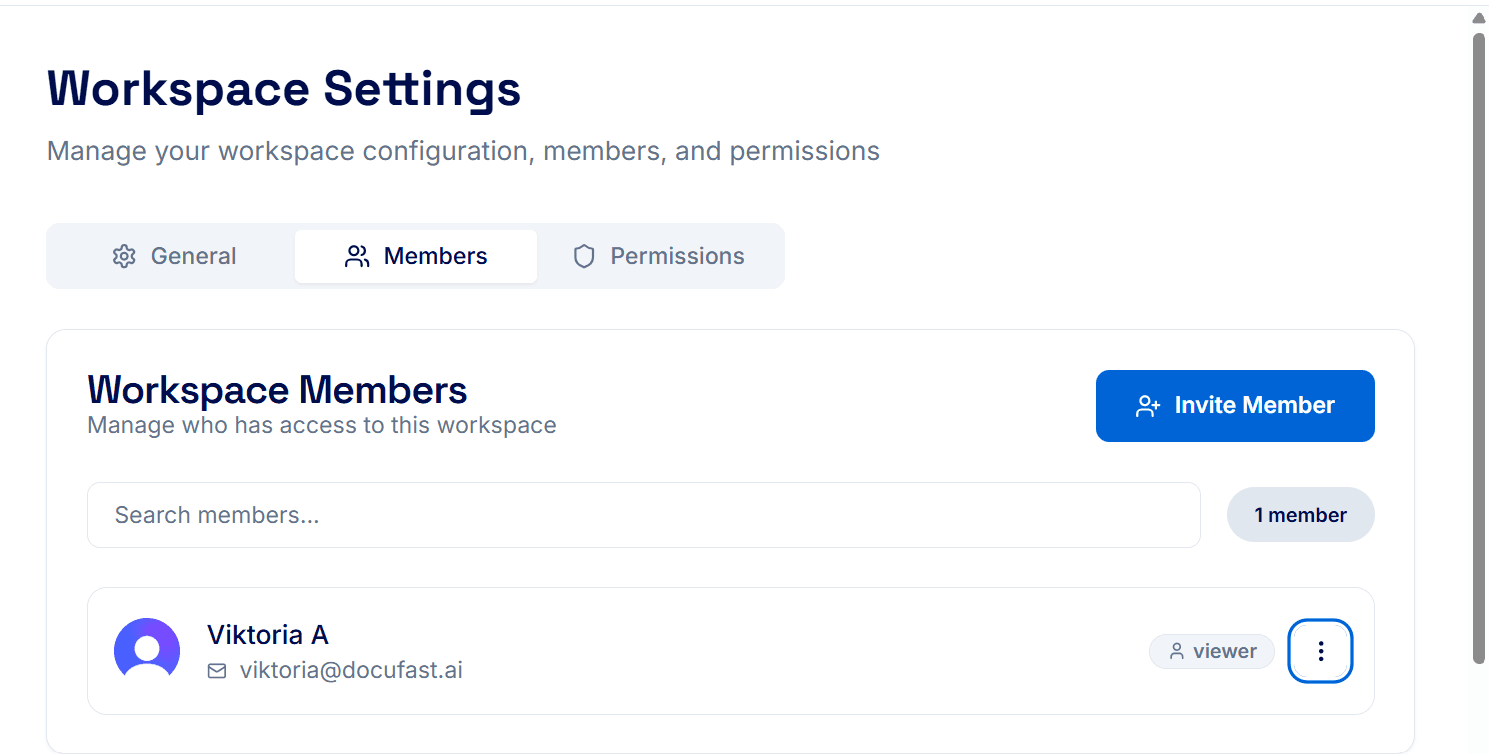
When collaborating across teams or departments, DocuFast enables you to:
Share a single document with multiple teams
Allow contributors to view guides and provide feedback without disrupting core content
Update documents in real time while maintaining consistency
Each team interacts with the document based on their role in the workflow, ensuring collaboration remains structured and intentional.
Common Cross-Team Collaboration Use Cases
Operations and Leadership
Operations teams can prepare internal documentation or reports and share them with leadership for review. Leadership can leave high-level feedback or approvals without editing the core content, keeping the document clean and controlled.
Legal, Compliance, or External Review Teams
Documents can be shared with review-focused teams who need to validate accuracy or compliance. Feedback can be collected without granting full editing access, reducing the risk of accidental changes.

Steps
Step 1: Define the Purpose Before Sharing
Before sharing a document across teams, clearly define:
What kind of input is expected
Whether feedback or edits are required
This helps collaborators understand how to interact with the document.
Step 2: Keep Updates Centralized
Always update the shared document instead of creating new copies. This ensures all teams are referencing the same version and prevents outdated information from circulating.
Step 3: Review and Resolve Feedback Regularly
Unresolved feedback can slow down collaboration. Periodically review feedback, address questions, and mark discussions as resolved to keep the document moving forward.
How to Avoid Common Teams Collaboration Issues
Issue | Recommended Fix |
|---|---|
Conflicting changes | Centralize edits and clarify who is responsible for final updates. |
Unclear ownership | Assign a document owner to manage updates and resolve feedback. |
