Edit
Editing for Compliance & Sensitivity
Written By:
Overview
Not all workflows are just “how-to” instructions — some include sensitive data, confidential processes, or regulatory steps. Editing for compliance and sensitivity ensures that your guides:
Avoid exposing private or confidential information.
Follow internal company policies and industry regulations.
DocuFast gives you tools to blur sensitive info, redact screenshots, and carefully control the content that your team sees, keeping your guides both safe and accurate.
Prerequisites
Workflow guide open in Edit Mode.
Knowledge of company compliance policies or regulatory requirements relevant to the guide.
Steps
Step 1: Identify Sensitive Information
Go through your guide and look for:
Personal or customer data (emails, phone numbers, account IDs).
Proprietary or confidential internal processes.
Any regulatory information that requires careful handling.
Step 2: Use Screenshot Editing Tools
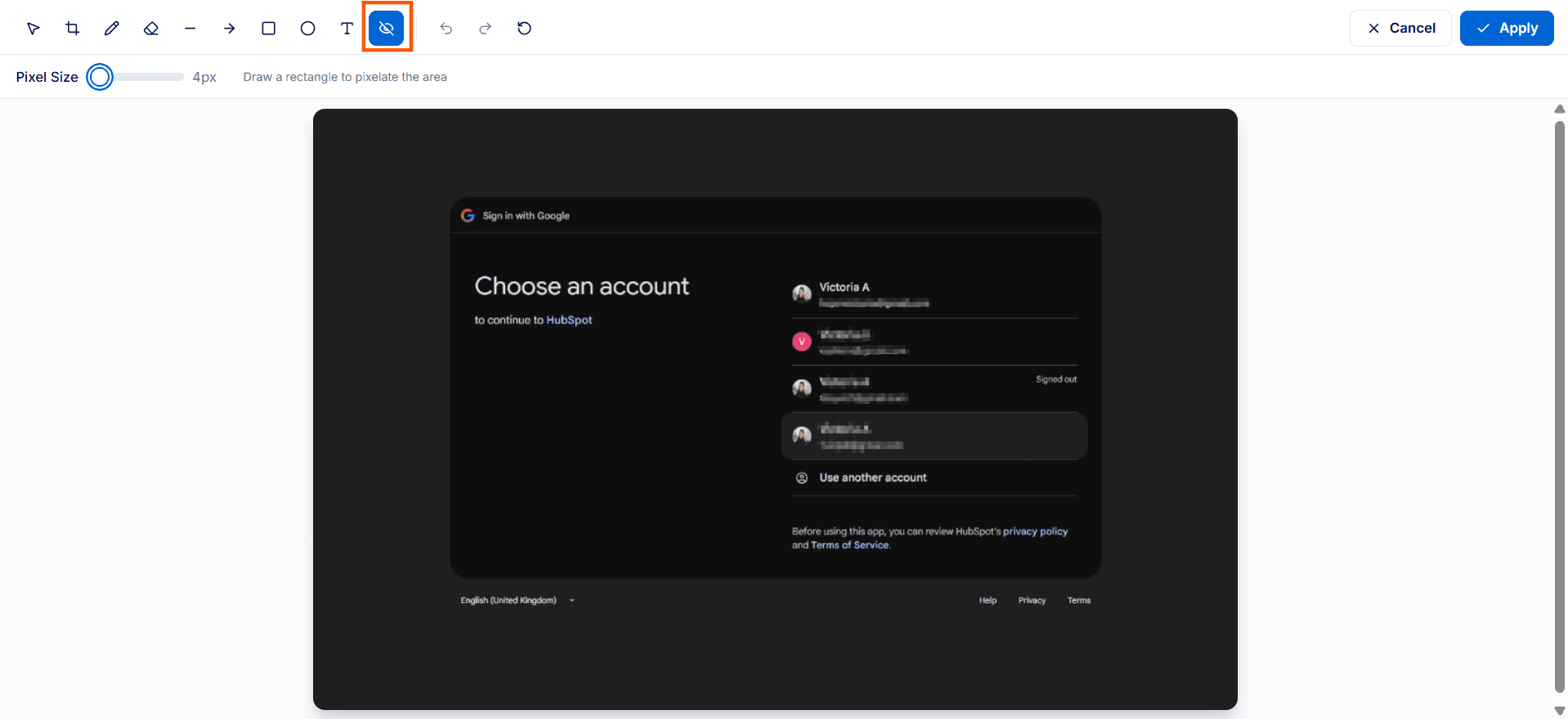
Hover over or click a screenshot thumbnail to access the Edit button. You can:
Redact personal or sensitive details to protect confidential information.
Adjust pixelation size to control how blurred sensitive areas appear.
Annotate or draw to provide clarity while protecting sensitive areas.
Step 3: Review Step Instructions
Remove unnecessary sensitive details from instructions.
Step 4: Final Review
Double-check that no confidential information is visible.
Optionally, have a compliance officer or team lead review the guide before sharing.
Share the guide only after it passes the review.
