Edit
Common Editing Mistakes (and How to Fix Them)
Written By:
Overview
Editing guides in DocuFast is easy, but small errors can reduce clarity, confuse your team, or even introduce compliance risks.
Common Editing Mistakes & How to Fix Them
1. Steps Out of Order
Mistake: Steps are not in the correct workflow sequence, causing confusion.
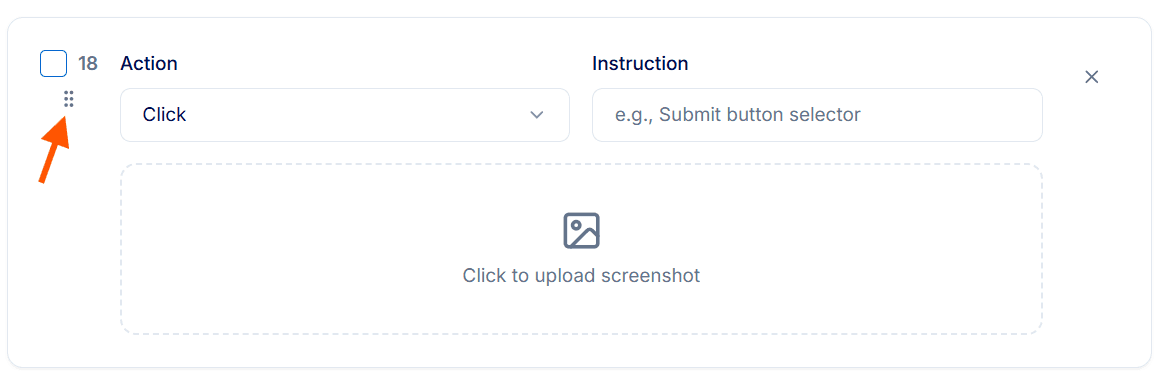
Fix: Use the drag handle or the Other Editing Tools (Send to Top / Send to Bottom) to reorder steps logically.
2. Missing or Poorly Edited Screenshots
Mistake: Screenshots are absent, unclear, or not annotated properly.
Fix: Add screenshots using the Click to Upload Screenshot button, or update existing ones using the Replace Image option. Use annotation and highlight tools to improve clarity where needed.
3. Step Instructions Are Unclear
Mistake: Instructions are too vague, too long, or inconsistent.
Fix: Edit instructions to be short, actionable, and uniform. Use the same verbs for similar actions.
4. Duplicate or Redundant Steps
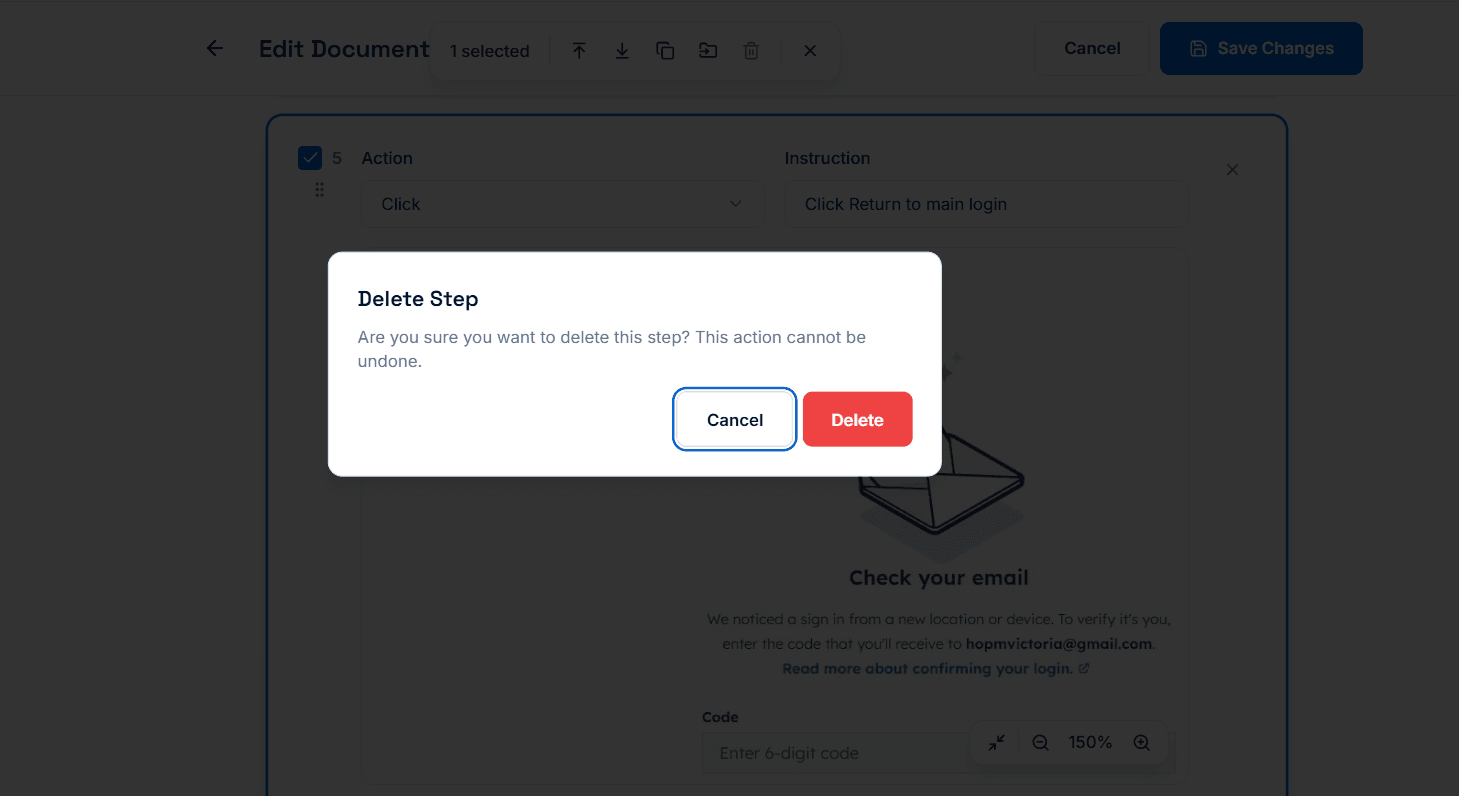
Mistake: Steps are repeated unintentionally, often when you go back during a workflow and perform the same action again or correct a mistake.
Fix: Review the step list and delete unnecessary or repeated steps using the Delete option in the editing tools. Keep only the intended steps so the workflow stays clear and easy to follow.
5. Exposing Sensitive Information
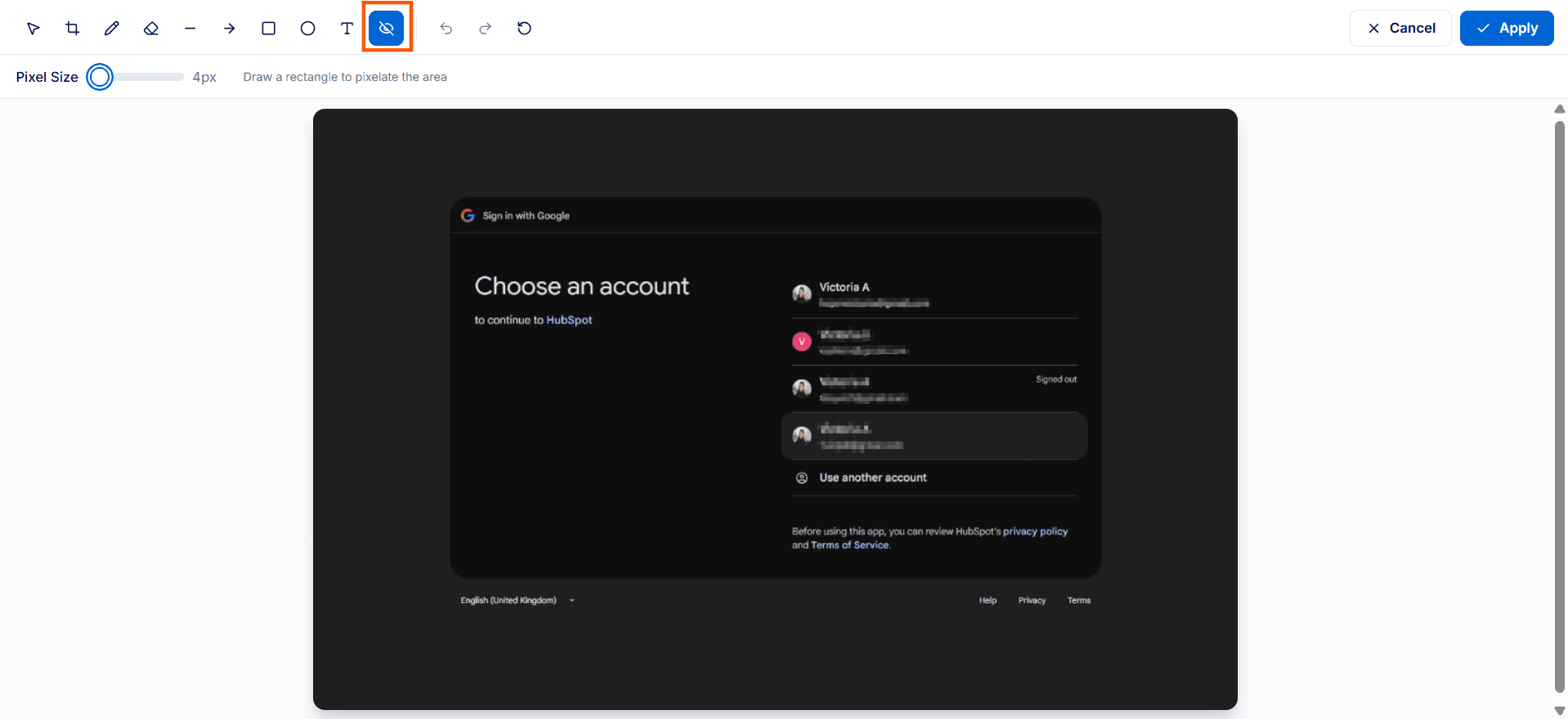
Mistake: Personal or confidential info is visible in screenshots or instructions.
Fix: Use screenshot editing tools to blur or redact sensitive info. Replace private data in text with placeholders.
6. Forgetting to Save Changes
Mistake: Edits are lost because the recent changes weren’t saved.
Fix: After every edit, click Save Changes in the top-right corner. Check the save notification at the bottom-left of your screen to confirm your changes have been successfully saved. Also, avoid closing the browser mid-edit.

Tips for Best Results
Work section by section to catch mistakes early.
Keep a checklist of common issues for quick reference.
