Getting Started
Using Teach Me
Written By:
Overview
Teach Me turns your static DocuFast documents into interactive, on-screen training guides. Instead of just reading steps, users are guided directly inside the application with overlays that show exactly where to click. This makes onboarding and process training faster and easier.
Starting Teach Me
Open the DocuFast Extension
Click the DocuFast icon in your browser toolbar to open the side panel.
Go to Documents
In the side panel, click Documents to view your available workflows.
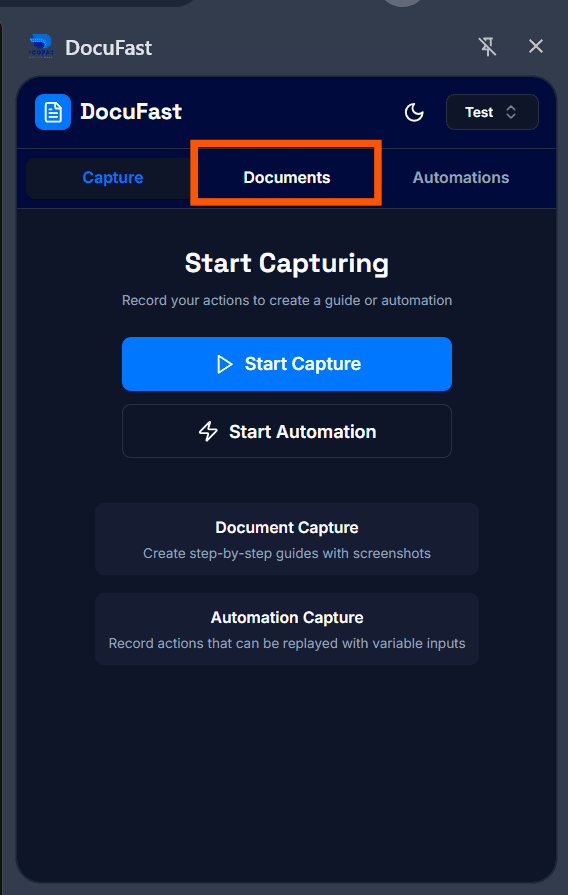
Select a Document
Choose the document you want to replay in Teach Me mode.
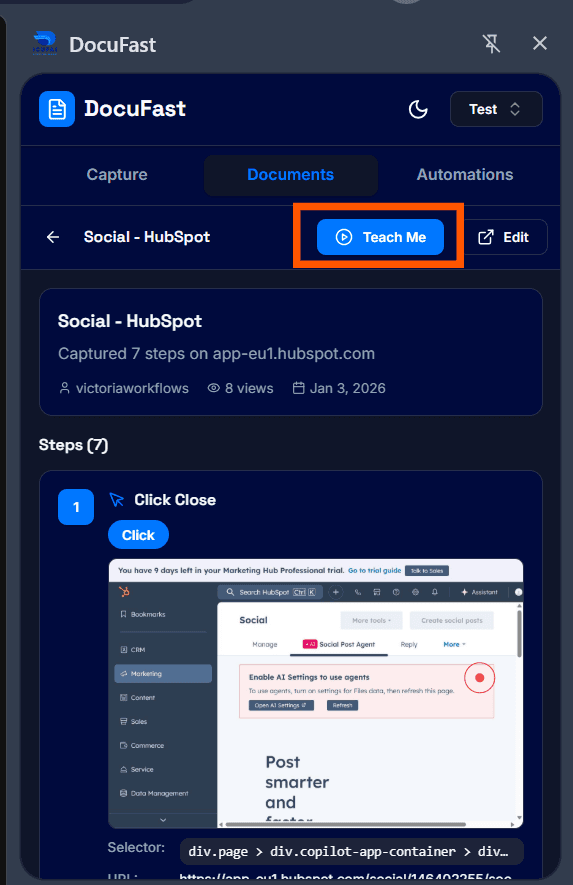
Start Teach Me
Click Teach Me to begin guided mode. Step-by-step overlays and screenshots will guide you through the workflow.
How Teach Me Works
Overlays in the System
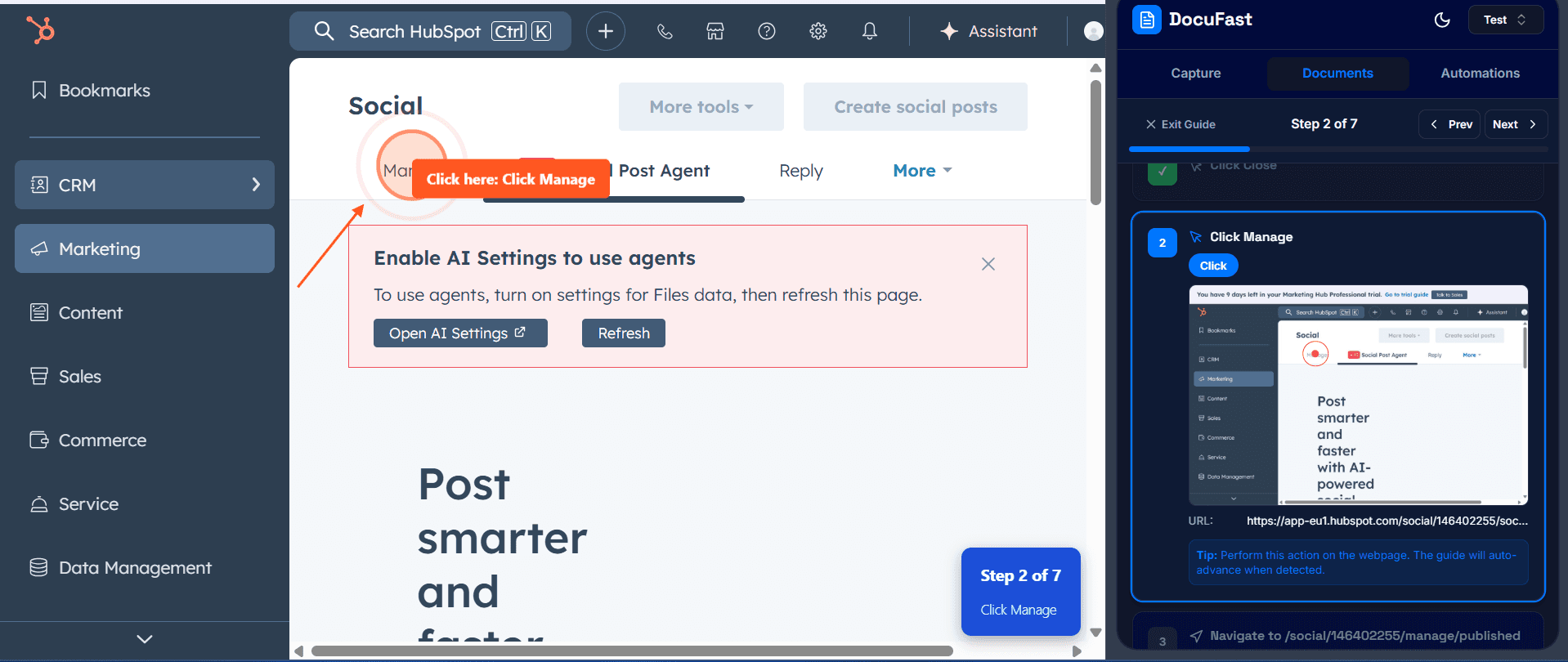
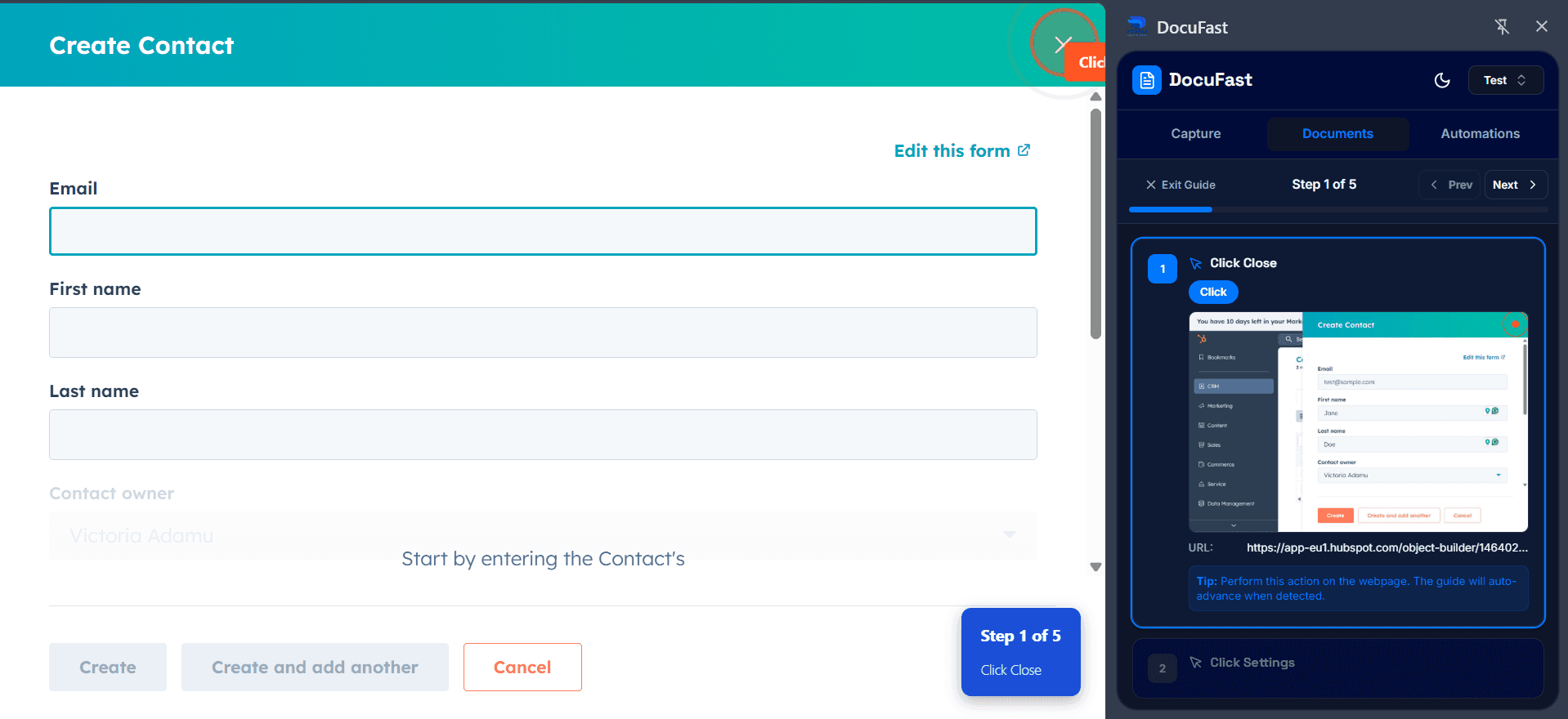
When Teach Me is clicked, you are automatically redirected to the documented system
The System will open with an overlay showing the first step
The side panel will display the document steps.
A transparent overlay highlights the exact place you need to click.
Tooltips explain what action to take.
Real interaction: When you click, the action is executed in the system itself.
Side Panel Guidance
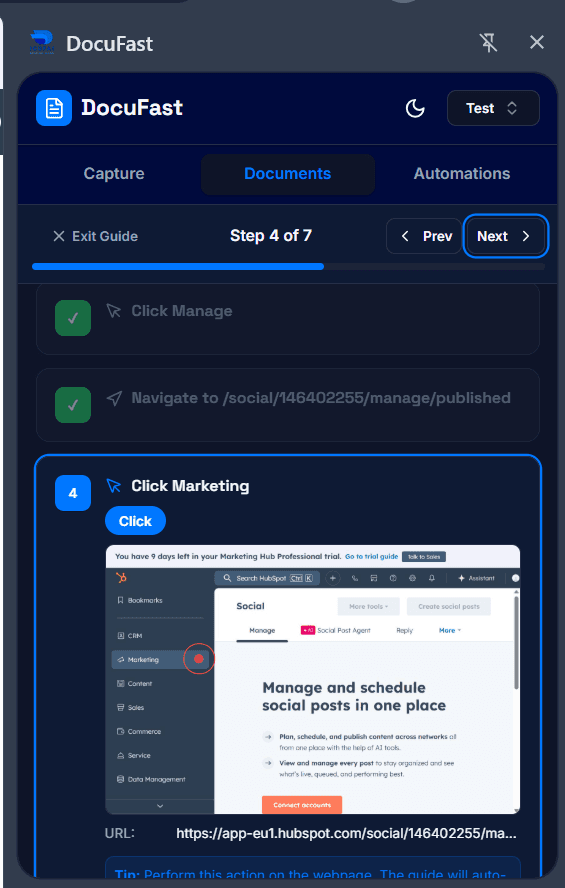
The side panel shows the step list and corresponding screenshots.
Completed steps turn into a green check mark.
Enlarging Screenshots
Click a screenshot in the side panel to open it.
Press Close in the top-right corner to close the enlarged view.
Helpful when you want to double-check what the overlay is guiding.
Navigation
Go back: Click the Prev button in the side panel.
Move forward: Complete the current step or click the Next button.
Notes & Tips
Teach Me works best for repeatable workflows (e.g., CRM updates, ticket creation, HR forms).
Use enlarged screenshots when you need extra visual clarity.
