Getting Started
How to Share Your Documents
Written By:
Overview
You can easily share your DocuFast documents with teammates or external users. Sharing is available directly inside each document from the top menu bar.
Steps to Share
Open the document you want to share
Navigate to the document in your workspace.
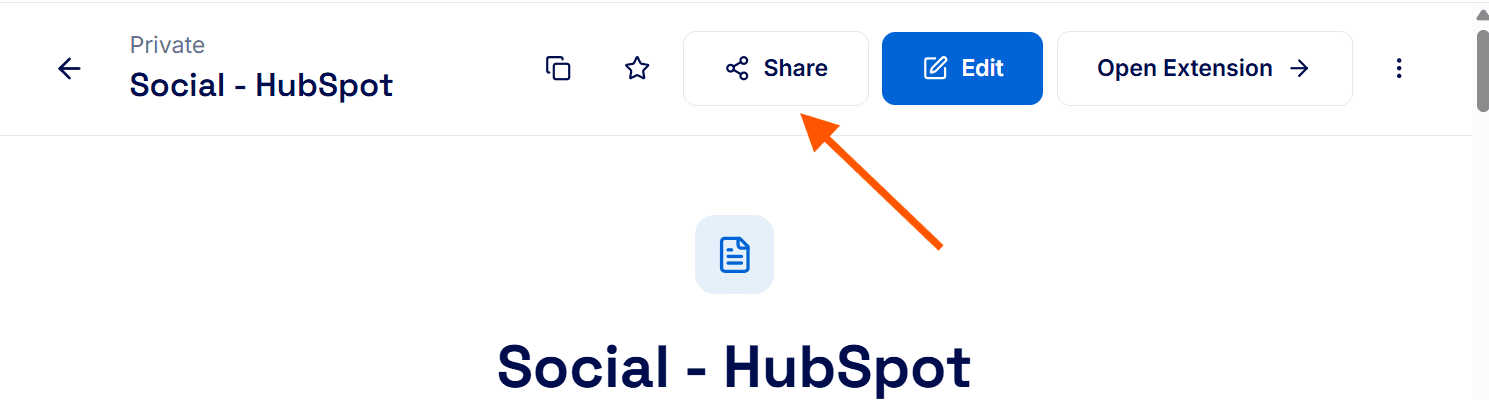
Click on Share
In the top menu bar, click the Share button.
A sharing panel will open on the right side.
Choose how you want to share
Who can access:
Private access - Only you can view the document with the generated link.
Public access - Toggle on the Access button and save changes to grant access to anyone with the link. This allows external access.
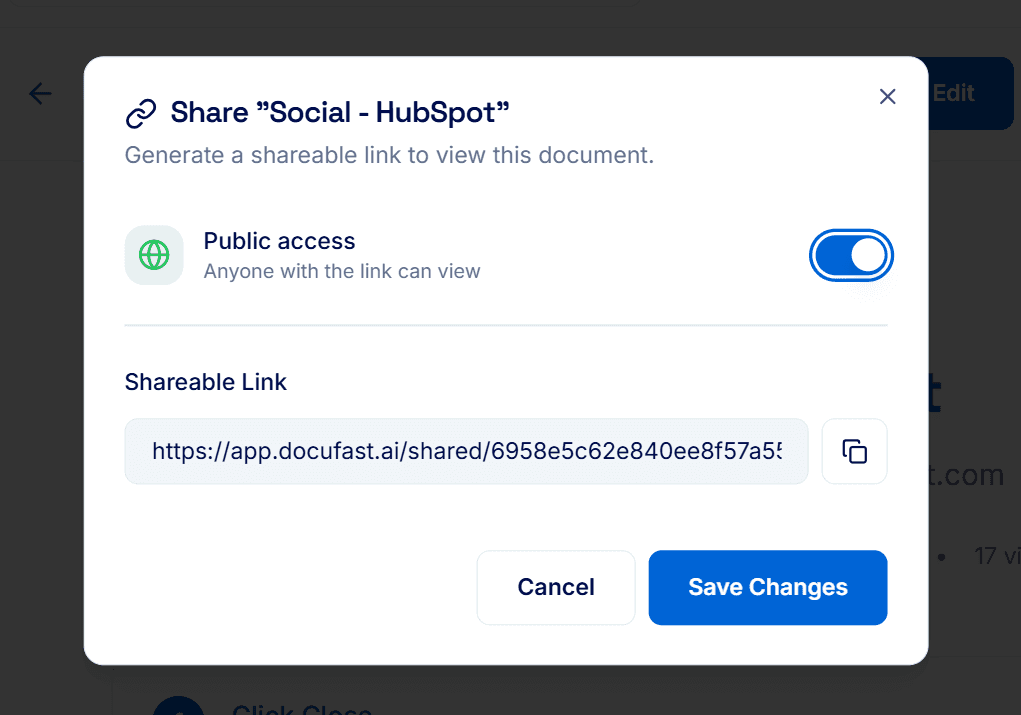
Copy link and share
Copy the copy icon to copy the link. You can then share this link with teammates or external users.
Export as PDF
Besides sharing a link, you can also export your document as a PDF for offline use or distribution.
Steps
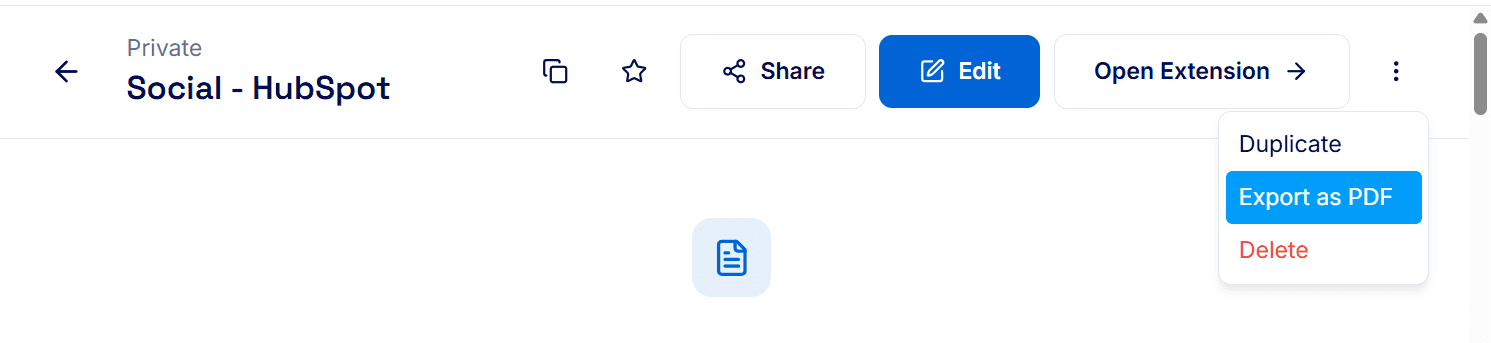
Click the three-dot menu at the top right of the document to view all available options.
Select Export as PDF from the menu.
Choose your page size (A4 or Letter) and orientation (Portrait or Landscape).
Click Export as PDF to download your document.
Notes & Tips
Always check who can access (private or public) before sharing a link.
Use Export when you need a static file.
Upgrade to Premium to customize PDF exports with your own logo and footer title.
