Getting Started
Understanding the DocuFast Dashboard
Written By:
Overview
The DocuFast dashboard is designed to help you work efficiently from one place. From here, you can access your documents, manage workspaces, collaborate with your team, and adjust account settings. Understanding how the dashboard is organized will help you navigate DocuFast faster and make the most of its features.
Dashboard Layout
The dashboard is divided into three main sections: Main Menu, Team Documents, and Other Options.
Main Menu
The Main Menu appears on the left side of the dashboard and gives you quick access to your core areas.
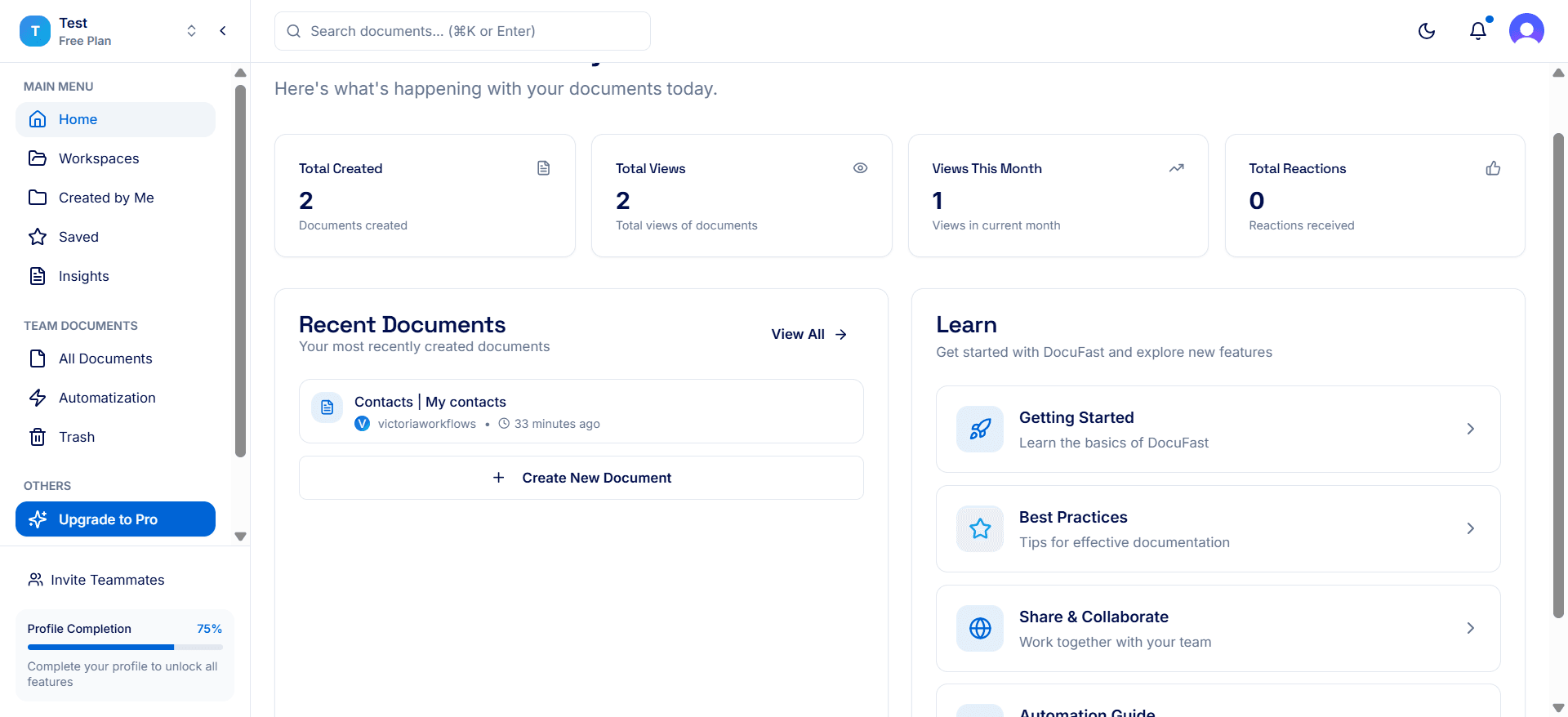
Home
The Home page provides an overview of your recent activity. Here, you can:
View recently created or edited documents
See important analytics
Learn more about DocuFast
Workspaces
Workspaces help you organize documents by team, department, or project. From this section, you can:
Switch between workspaces
Create new workspaces
Star important workspaces
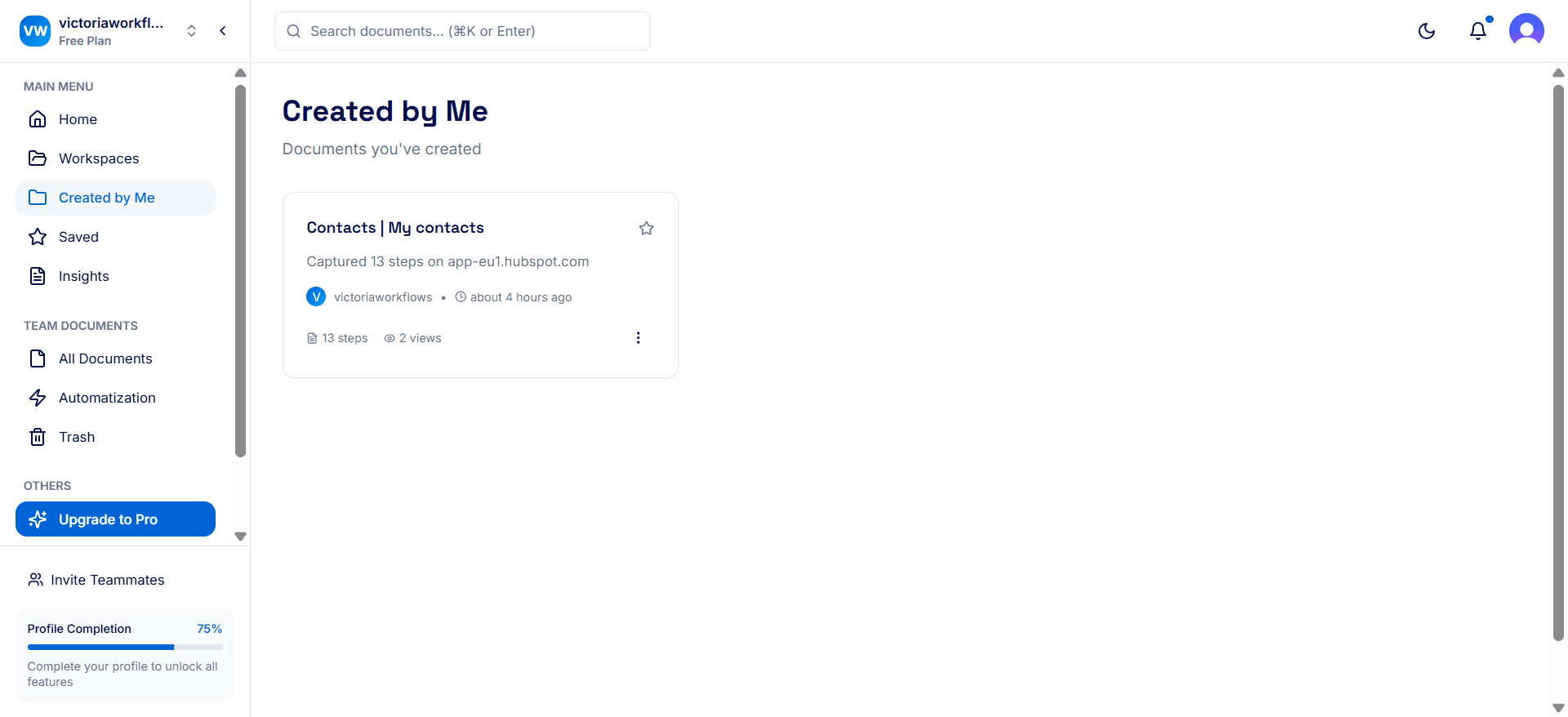
Created by Me
This section shows all documents you personally created. It helps you:
Quickly find your work
Manage documents you own
Edit or share your guides
Saved
Saved documents are guides you’ve bookmarked/starred for quick access. Use this area to:
Store frequently used documents and automatizations
Return to important workspaces
Insights
Insights show your documents and automatizations statistics. Switch between your insights and team insights. Here, you can:
Track views and engagement
Identify popular documents
Improve content based on usage data
Team Documents
Team Documents contain shared content across your workspace.
All Documents
Displays every document available in your workspace.
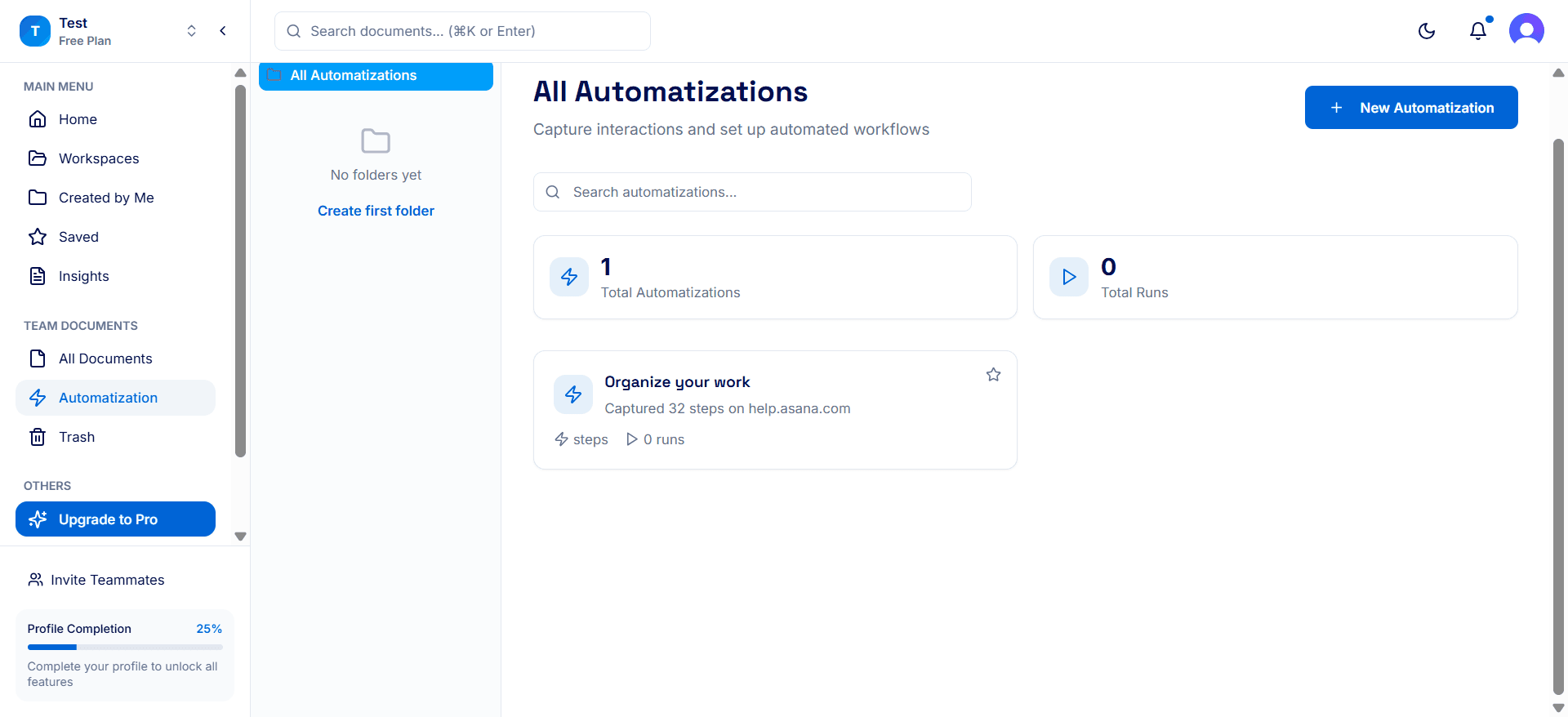
Automatization
Automatizations include documents generated automatically by DocuFast. From here, you can:
View automated workflows
Manage auto-generated documentation
Trash
Trash temporarily stores deleted documents. You can restore documents if needed or permanently delete items.
Other Options
These options help you manage your subscription, workspace preferences, and account details.
Upgrade to Pro
Upgrade your plan to unlock advanced features. Here you can view available plans as well as upgrade your subscription.
Workspace Settings
Workspace Settings control how your team collaborates. Use this section to:
Manage workspace members
Set roles and permissions
Customize workspace preferences
Account Settings
Account Settings apply to your personal profile. Here, you can:
Update your profile details
Change your password
Manage security settings
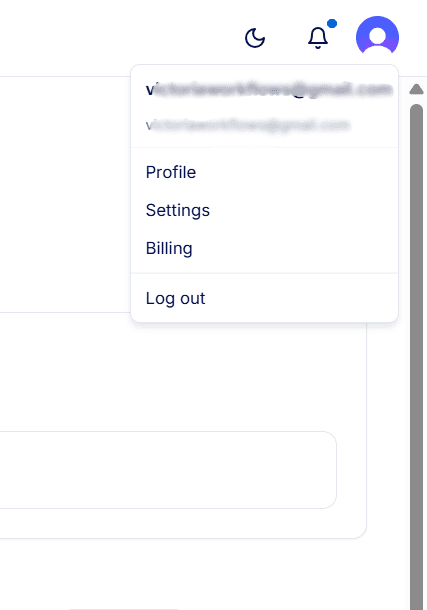
Profile Picture Menu
Your profile picture at the top right of the dashboard provides quick access to key actions. Clicking it allows you to:
Open Account Settings
Manage Billing
Log out of your account
Notes & Tips
Use Workspaces to switch between workspaces
Save frequently used guides for quick access
Review Insights to improve documentation quality
