Getting Started
Inviting Teammates
Written By:
Overview
DocuFast allows you to collaborate with teammates inside your workspace. You can invite new users, assign them roles, and manage their permissions. Permissions are set at the workspace level, ensuring each teammate has the right access.
Steps to Invite Teammates
Open Workspace Settings
In the left sidebar of the DocuFast Dashboard, click Invite Teammates.
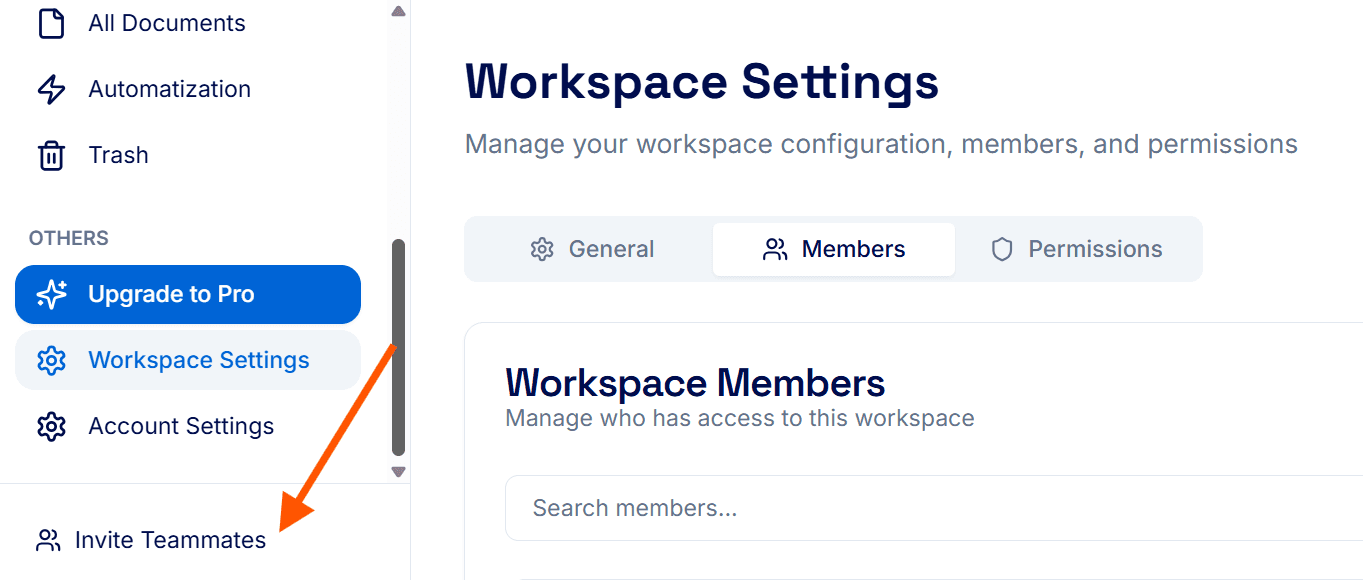
Invite a new user
Click the Invite Member button.
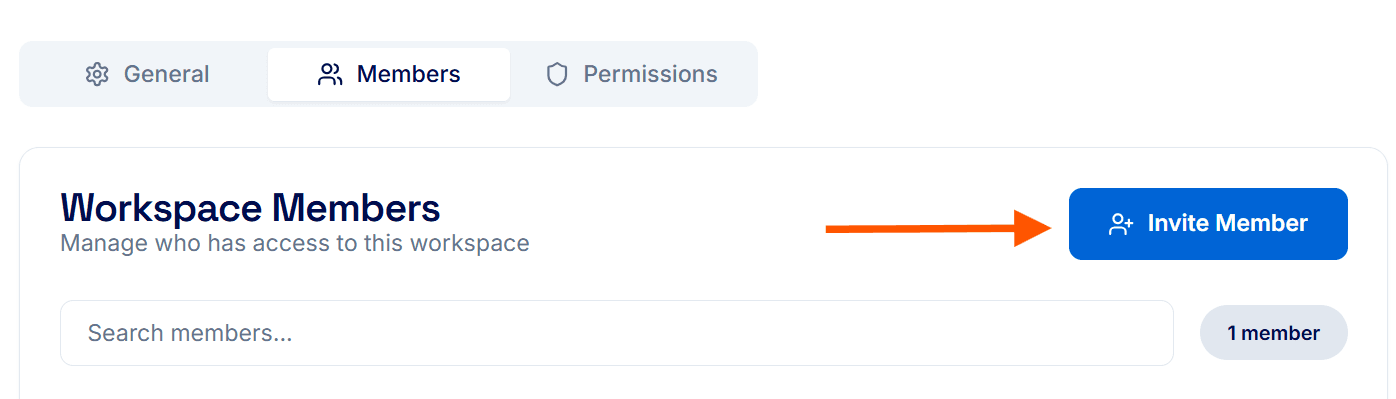
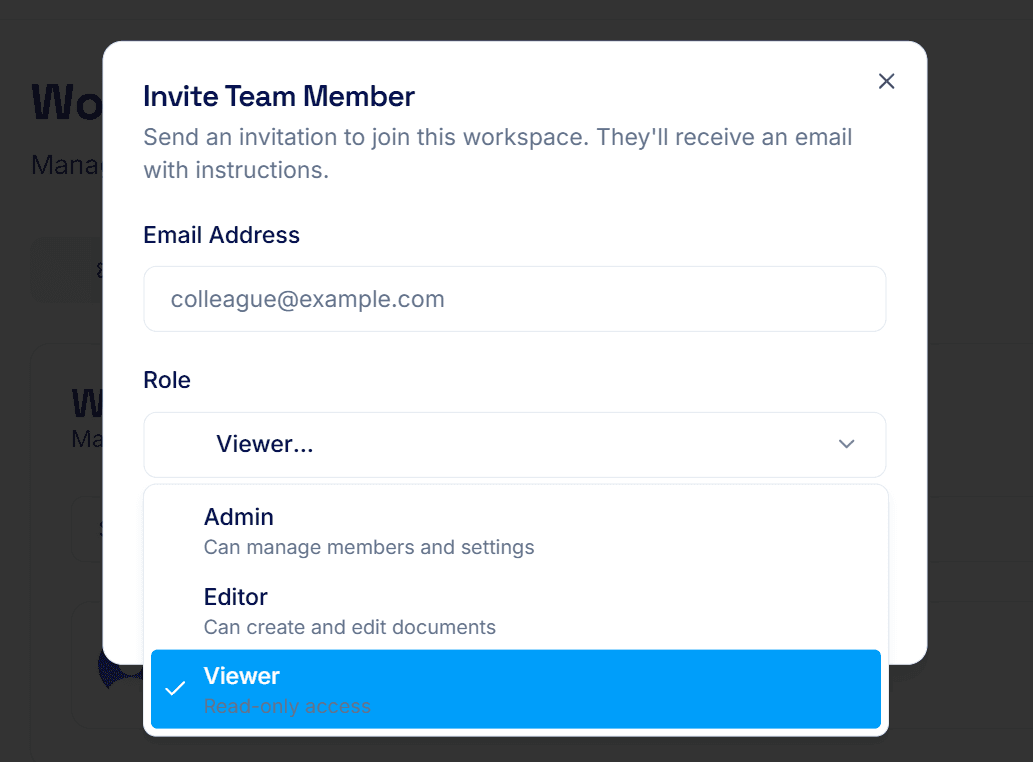
Enter details
Type the teammate’s email address.
Choose a role from the dropdown (Admin, Viewer, Editor).
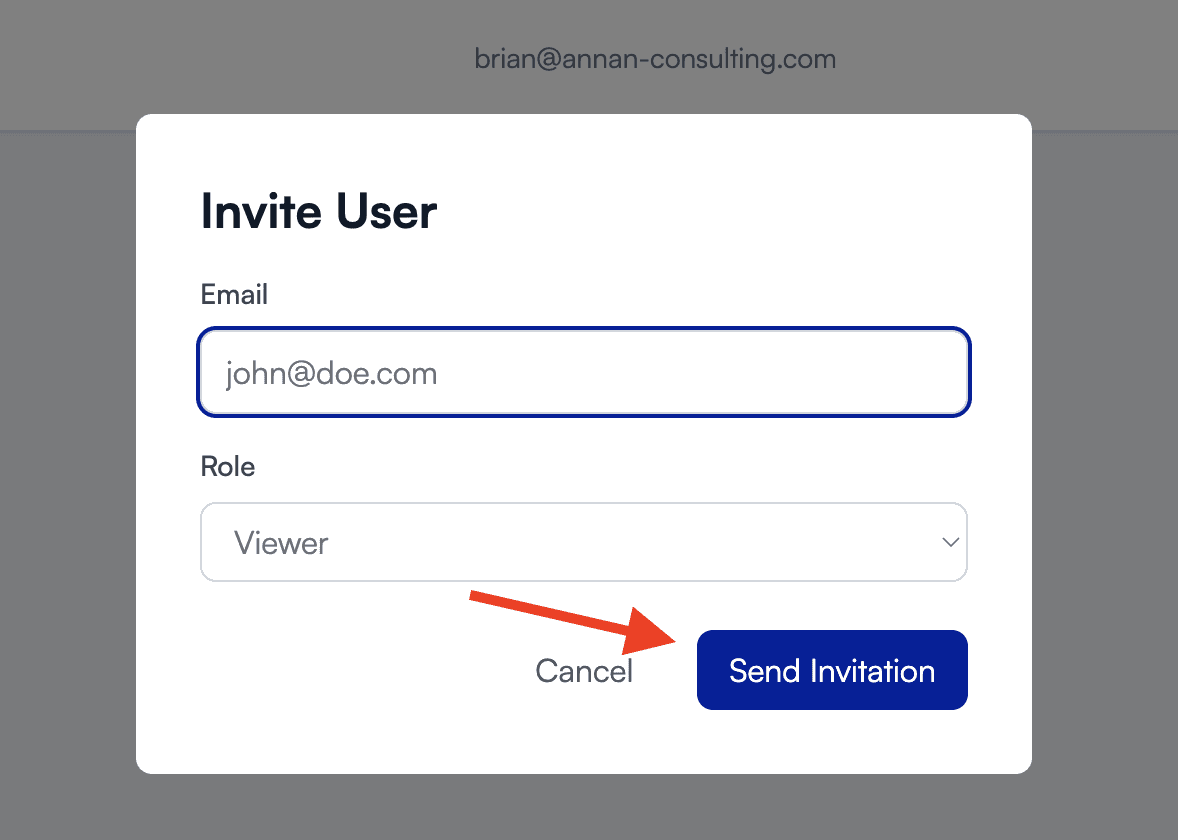
Send the invitation
Click Send Invitation to invite a team member.
The teammate will receive an email to join your workspace.
Roles Explained
Viewer 👀
Can view guides shared in the workspace.
Cannot edit, delete, or invite others to the same workspace.
Editor ✏️
Can create and edit guides.
Can view analytics.
Cannot manage users, workspaces, or billing.
Admin ⚙️
Full editing rights (like Editor).
Can also manage users, permissions, and workspace settings.
Cannot transfer workspace ownership.
Owner 👑
Has all Admin permissions.
Can delete the workspace.
Responsible for billing and subscription settings.
Notes & Tips
Assign Viewers to teammates who only need to follow processes.
Use Editors for content creators.
Keep the Admin role limited to one or two people for security reasons.
You can change a teammate’s role later in Workspace Settings.
