Share
Collaboration & Feedback
Written By:
Overview
Documentation is most effective when it’s shaped by multiple perspectives. Collaboration and feedback in DocuFast allow teams to refine workflows, improve clarity, and ensure accuracy without turning documents into conflicting guides.
This guide explains how collaboration works and who can contribute while keeping documents consistent and reliable.
Collaborating Within a Workspace
Collaboration in DocuFast happens through workspace membership and roles. Only users added to your workspace can collaborate directly on documents.
Who Can Collaborate
Admins and Editors can create and edit documents
Viewers can view documents, but cannot make changes
How to Grant Access for Team Collaboration
Team collaboration in DocuFast is controlled through workspace membership and roles. To allow someone to collaborate on documents, they must be added to your workspace with the appropriate permission level.
Step 1: Add Users to Your Workspace
Only users added to your DocuFast workspace can collaborate on documents.
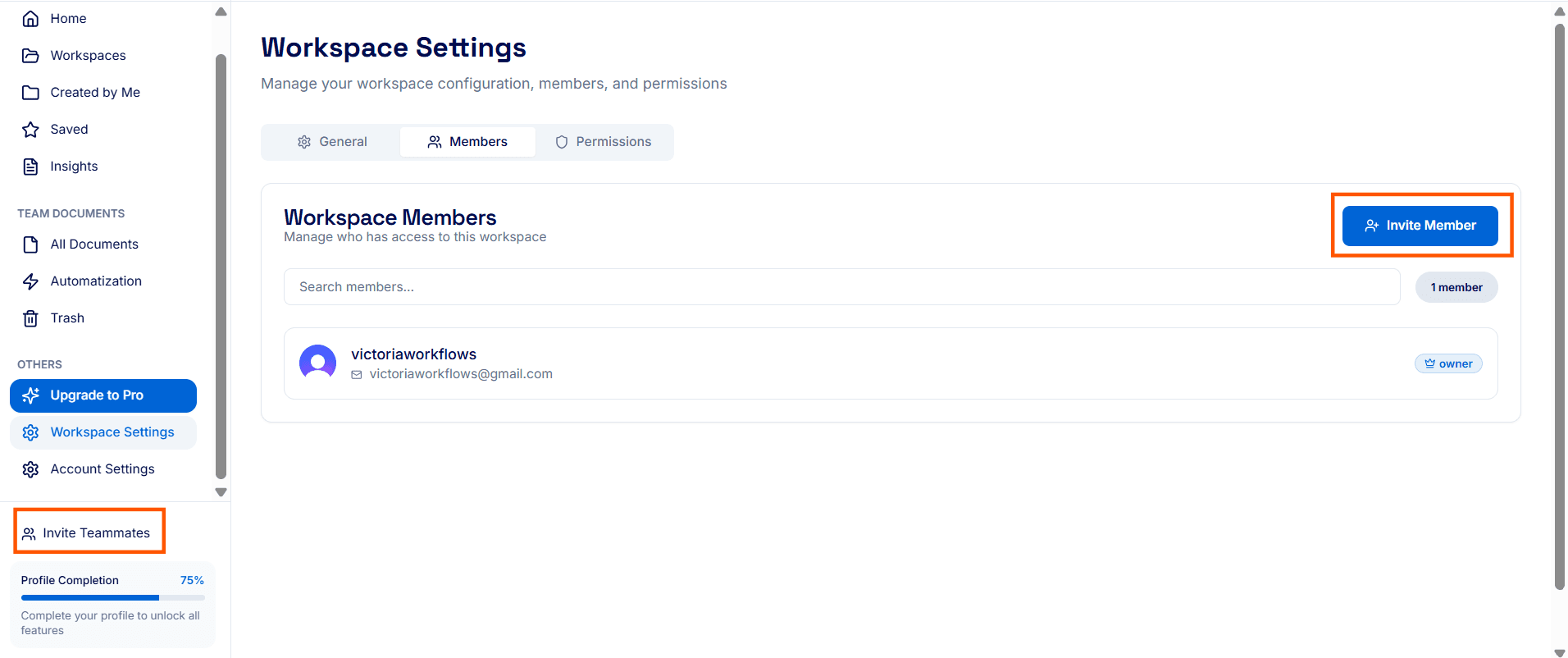
To add a new team member, click Invite Teammates on the left side of your dashboard, then select Invite Member.
Step 2: Assign the Correct Role
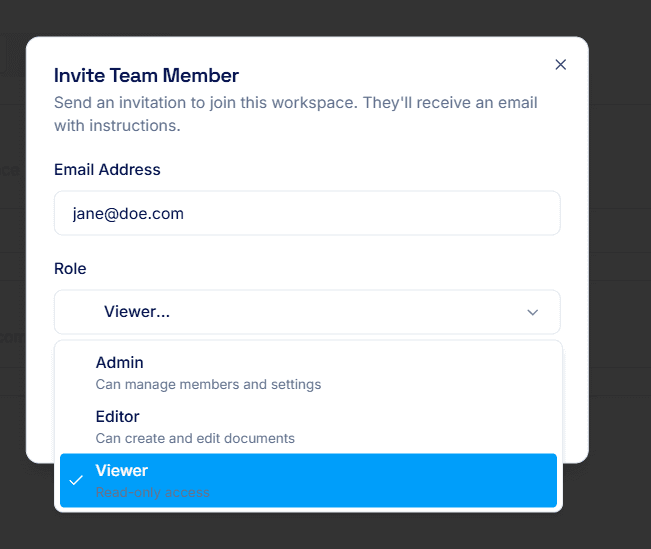
Add the team member's email address and choose a role that matches the level of collaboration needed:
Admin
Can create, edit, and manage documents and workspace settings.Editor
Can create and edit documents, but cannot manage workspace settings.Viewer
Can view shared documents but cannot create or edit content.
For active collaboration, assign Admin or Editor access.
When to Use Collaboration and Feedback
Use collaboration and feedback when:
Creating or updating SOPs
Preparing training or onboarding materials
Reviewing client-facing documents
Improving clarity across shared workflows
Best Practices for Team Collaboration
Collaborate internally before sharing externally
Keep documents private during editing
Share finalized versions once feedback is incorporated
