Using Teach Me
Written By:
Last Updated on May 21, 2026
Overview
Teach Me turns your static Docufast documents into interactive, on-screen training guides. Instead of just reading steps, users are guided directly inside the application with overlays that show exactly where to click. This makes onboarding and process training faster and easier.
Starting Teach Me
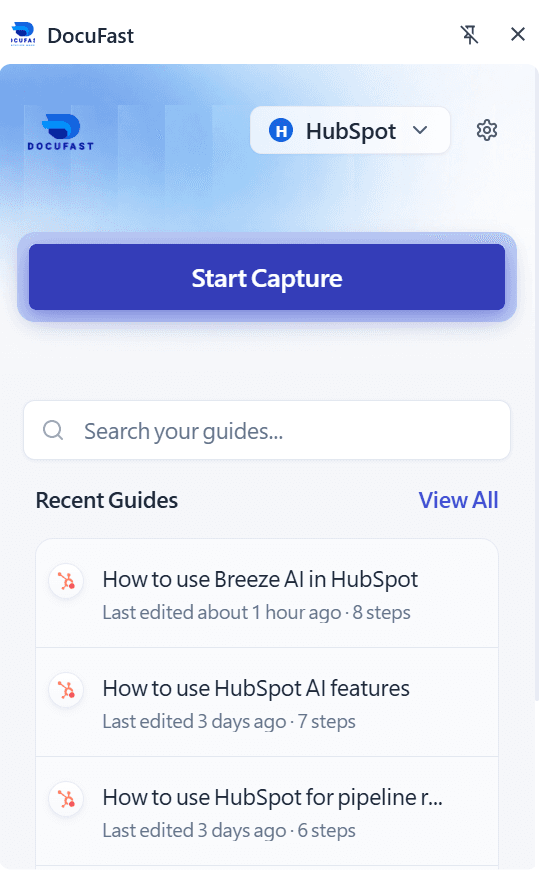
Open the Docufast Extension
Click the Docufast icon in your browser toolbar to open the side panel.
Select a Document
Choose the document you want to replay in Teach Me mode.
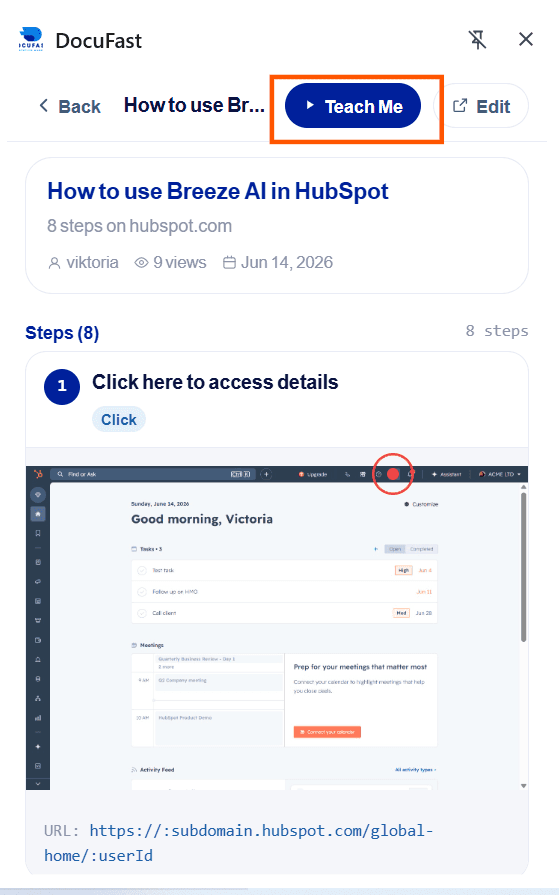
Start Teach Me
Click Teach Me to begin guided mode. Step-by-step overlays and screenshots will guide you through the workflow.
How Teach Me Works
Overlays in the System
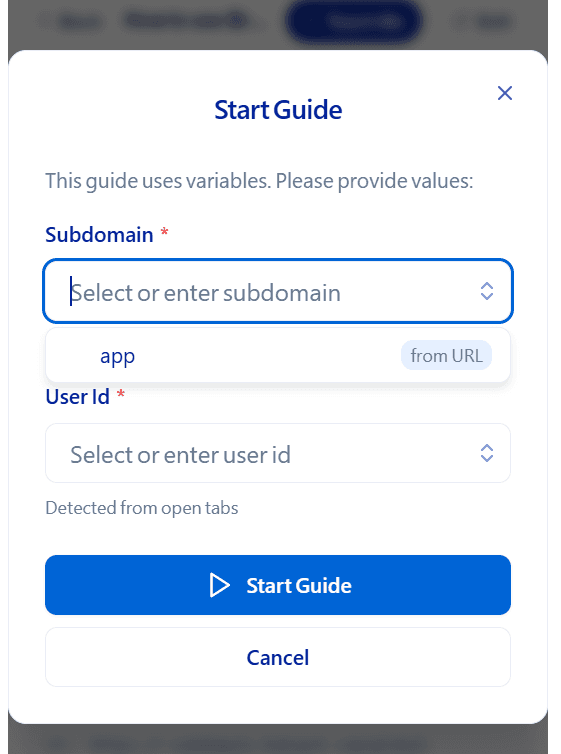
When Teach Me is clicked, you are automatically redirected to the documented system
The system will open with an overlay asking you to enter in some required values
The side panel will display the document steps.
A transparent overlay highlights the exact place you need to click.
Tooltips explain what action to take.
Real interaction: When you click, the action is executed in the system itself.
Side Panel Guidance
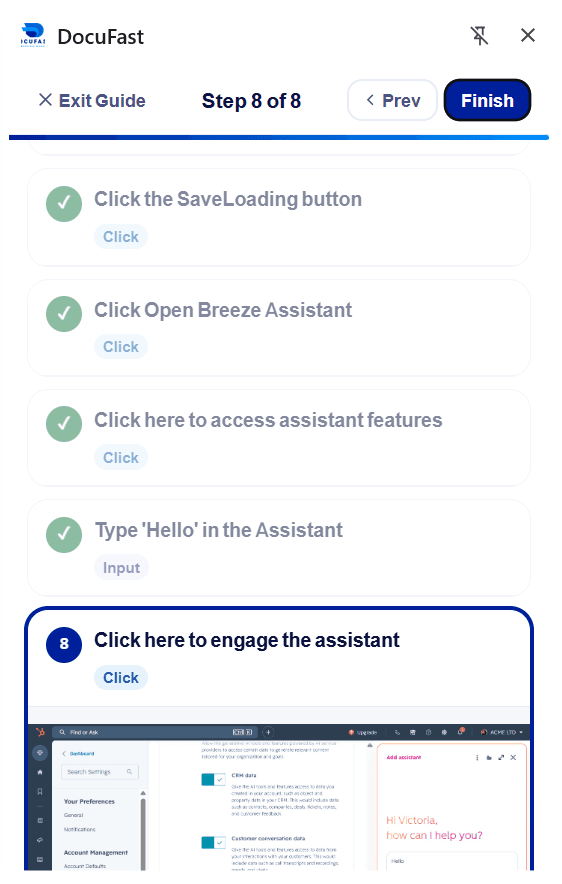
The side panel shows the step list and corresponding screenshots.
Completed steps turn into a green check mark.
Navigation
Go back: Click the Prev button in the side panel.
Move forward: Complete the current step or click the Next button.
Notes & Tips
Teach Me works best for repeatable workflows (e.g., CRM updates, ticket creation, HR forms).
Use enlarged screenshots when you need extra visual clarity.
